
Documentation Index

Fetch the complete documentation index at: https://docs.paraminternationalltd.com/llms.txt

Use this file to discover all available pages before exploring further.

1

Open Users list

The Users list gives a quick overview of every tracked user in the selected project. You can filter users by date, country, or search keyword.It helps you quickly check the user’s country, retention type, app status, app version, device brand, last activity, and registration date.
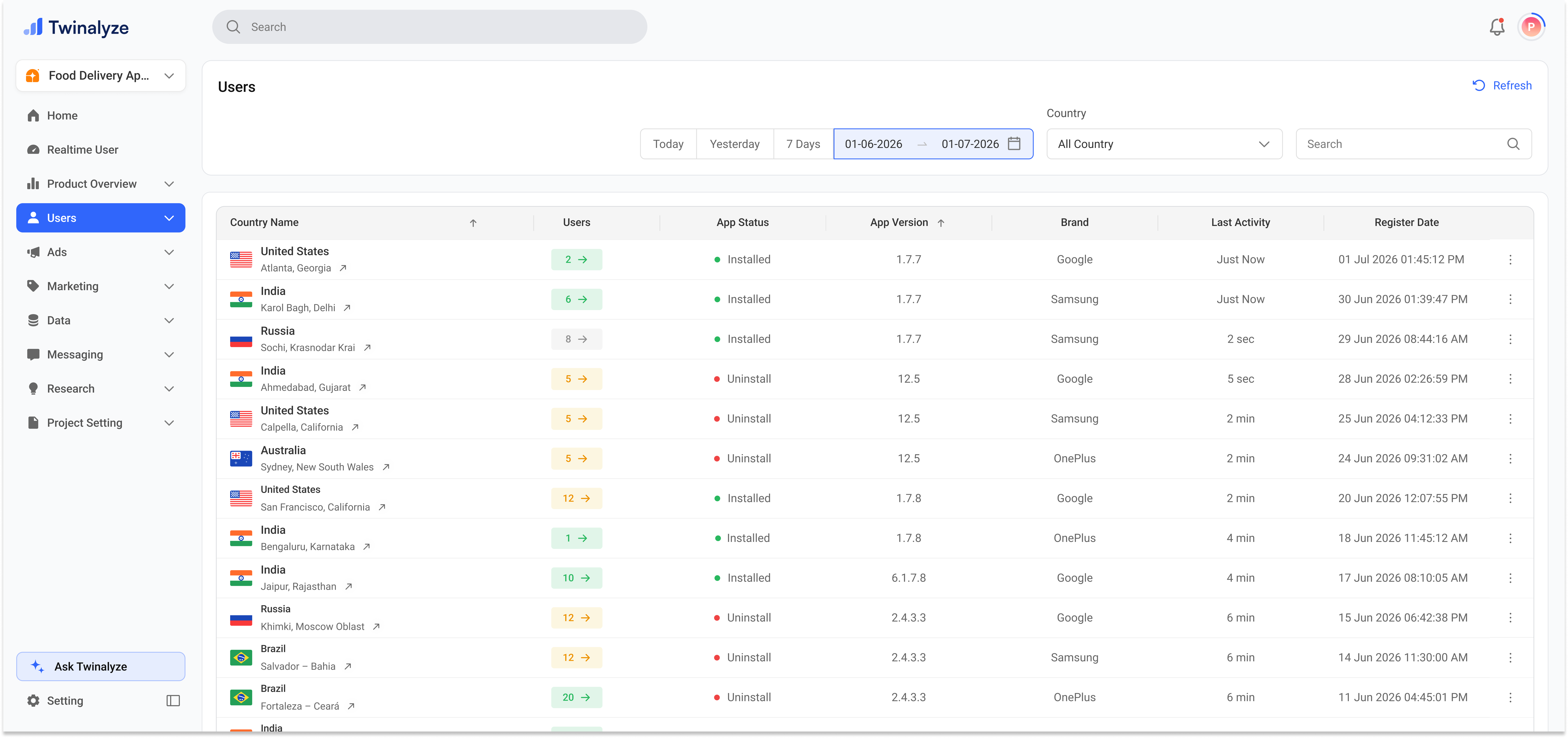
Twinalyze Users list page
2

Open user overview

Click any user row to open the user overview page. This page gives a deeper view of one selected user.You can review session summary, device properties, event properties, traffic source, and the user’s journey path from one place.
Twinalyze User Overview page
3

Expand activity details

Expand a session row to view detailed user activity. This helps you understand the exact sequence of events performed by the user.The right-side property area helps you inspect device details, event information, traffic source, and selected event data.
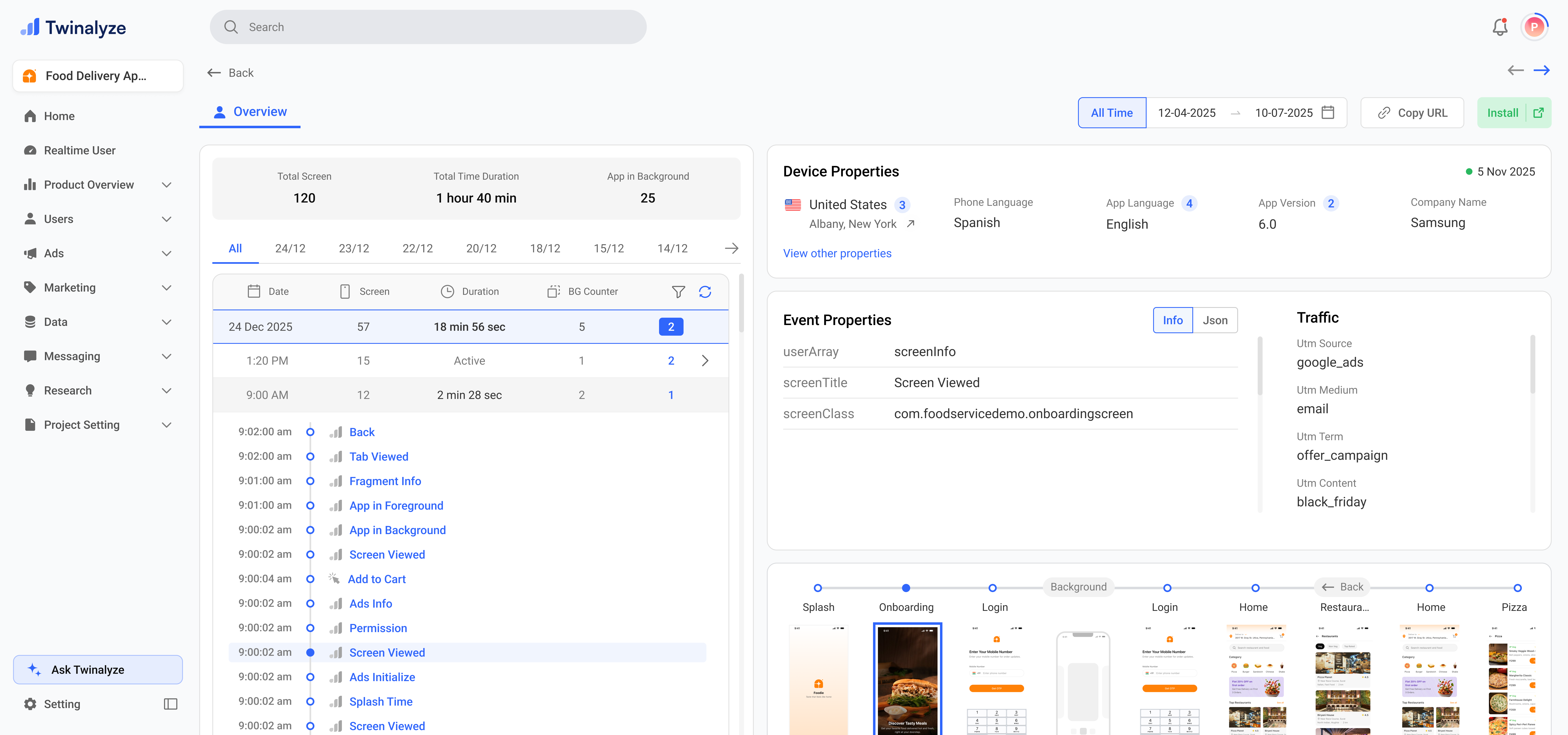
Twinalyze User activity details

User list view

User discovery

The Users list helps you understand who is using your app or website. It gives a clear user-level summary before opening the full user profile.

Country

Shows user location such as country and city when available.

Retention

Helps identify whether the user is new, retained, or marked as a test user.

App details

Shows install status, app version, and device brand.

Activity dates

Shows when the user was registered and when they were last active.


Events you may see

Twinalyze shows different event names based on the selected platform. App events are generated from the mobile SDK, while web events are generated from the website SDK.

Mobile app events

These events help you understand app lifecycle, language, screen tracking, splash time, and ad activity.

appForegroundApp comes to foreground
appBackgroundApp moves to background
languageApp or device language
screeninfoScreen or activity viewed
splashTimeSplash screen duration
adInfoAd related activity

Web events

These events help you understand page visits, clicks, form activity, scroll depth, search views, and custom behavior.

pageViewPage opened
elementClickButton or element clicked
formStartForm interaction started
formSubmitForm submitted
scrollDepthScroll progress reached
searchResultsViewSearch results viewed
customEventCustom tracked action

Example web event

This example shows a web pageView event. It includes page URL, page path, page title, referrer details, app version, and platform.
{
  "eventName": "pageView",
  "eventType": "auto",
  "appInfo": {
    "appVersion": "1.0",
    "platform": "javascript"
  },
  "properties": {
    "pageCount": 17,
    "pageDomain": "localhost",
    "pageUrl": "http://localhost:3030/tools",
    "pagePath": "/tools",
    "pageTitle": "FF Tool",
    "referrerUrl": "http://localhost:3030/",
    "referrerType": "internal"
  }
}

Common use cases

Open a user and review journey path, event properties, and session activity to understand what happened.
Use Device Properties to review app version, brand, model, language, IP address, screen size, and device ID.
Use Traffic to check whether the user came from Organic, Google Play, campaign source, or another UTM source.
Use Event Properties to inspect app events like screeninfo, splashTime, and adInfo, or web events like pageView, elementClick, formSubmit, scrollDepth, and customEvent.
User Overview helps your team understand individual user behavior, device context, traffic source, events, and journey path in one place.