Documentation Index

Fetch the complete documentation index at: https://docs.paraminternationalltd.com/llms.txt

Use this file to discover all available pages before exploring further.

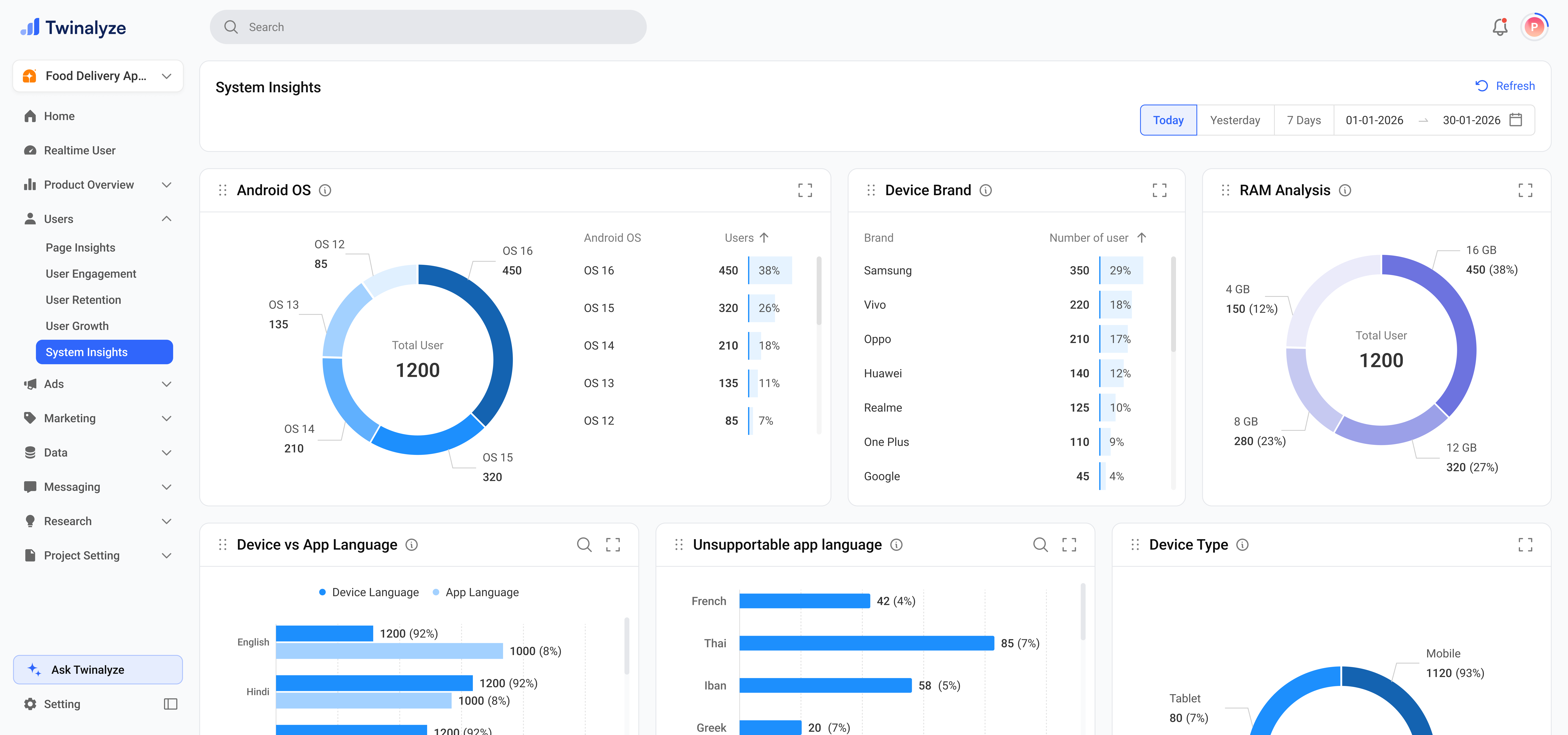
System Insights helps you understand the technical environment of your users.
1

Review OS, brand, and RAM

The first section gives a quick technical summary of your users. You can see Android OS versions, device brands, and RAM distribution.This helps you understand which device environments are most common and where your testing should focus first.
Twinalyze System Insights Android OS brand RAM
2

Check app store and browser packages

This section shows the default app store package and default browser package used by users.It helps you understand where users install from and which browser environments matter most for redirects, deep links, webviews, and compatibility.
Twinalyze System Insights store and browser package
3

Understand device display profile

This section shows device screen inch, screen density, and device type.It helps your team make better layout, UI testing, responsive design, and asset scaling decisions.
Twinalyze System Insights device screen density type
4

Review technical environment signals

This section shows whether developer option, proxy, or VPN is enabled on user devices.It helps with debugging, QA review, fraud checks, test-user behavior, and unusual environment analysis.
Twinalyze System Insights developer option proxy VPN
5

Analyze network and language usage

This section shows screen mode, network type, SIM name, device language, app language, and unsupported app languages.It helps you understand connection quality, carrier distribution, theme usage, and localization opportunities.
Twinalyze System Insights network language SIM

What this page helps you understand

Device environment

Understand Android version, brand, RAM, screen size, density, and device type used by your users.

Compatibility planning

Identify which OS versions, browsers, stores, and device profiles should receive more testing and optimization.

Network and security context

Review Wi-Fi, mobile data, SIM provider, VPN, proxy, and developer option signals.

Language readiness

Compare device language with app language and identify languages that users need but the app does not fully support.


How to use System Insights

1

Select date and user type

Use the top filters to choose a date range and user type. This updates all system insight charts.
2

Start with device basics

Review Android OS, Brand, and RAM first to understand the most common technical environment.
3

Check store and browser packages

Review app store and browser package charts to understand install and browser compatibility context.
4

Review display and security signals

Check screen size, density, device type, developer option, proxy, and VPN status.
5

Analyze network and language

Review network, SIM name, screen mode, device language, app language, and unsupported languages.

Common use cases

Use Android OS, Brand, RAM, Density, and Device Screen Inch to decide which devices and environments need more testing.
Use Default Browser Package, Default App Store Package, Device Type, and Screen Mode to improve app and web compatibility.
Use Device vs App Language and Unsupportable App Language to identify where new language support may be needed.
Use Device Network and Device SIM Name to understand how users connect and which carriers are common.
Use Developer Option, Proxy, and VPN charts to identify special technical setups or QA-like users.