

 Overview
 Analytics
 SDKs
SDKs Integrations
 Changelog
1
Select an event to continue
Use the left-side Filters panel to select the audience.First choose the date range, then click Add Events. The selected event controls which user group will be targeted for the notification.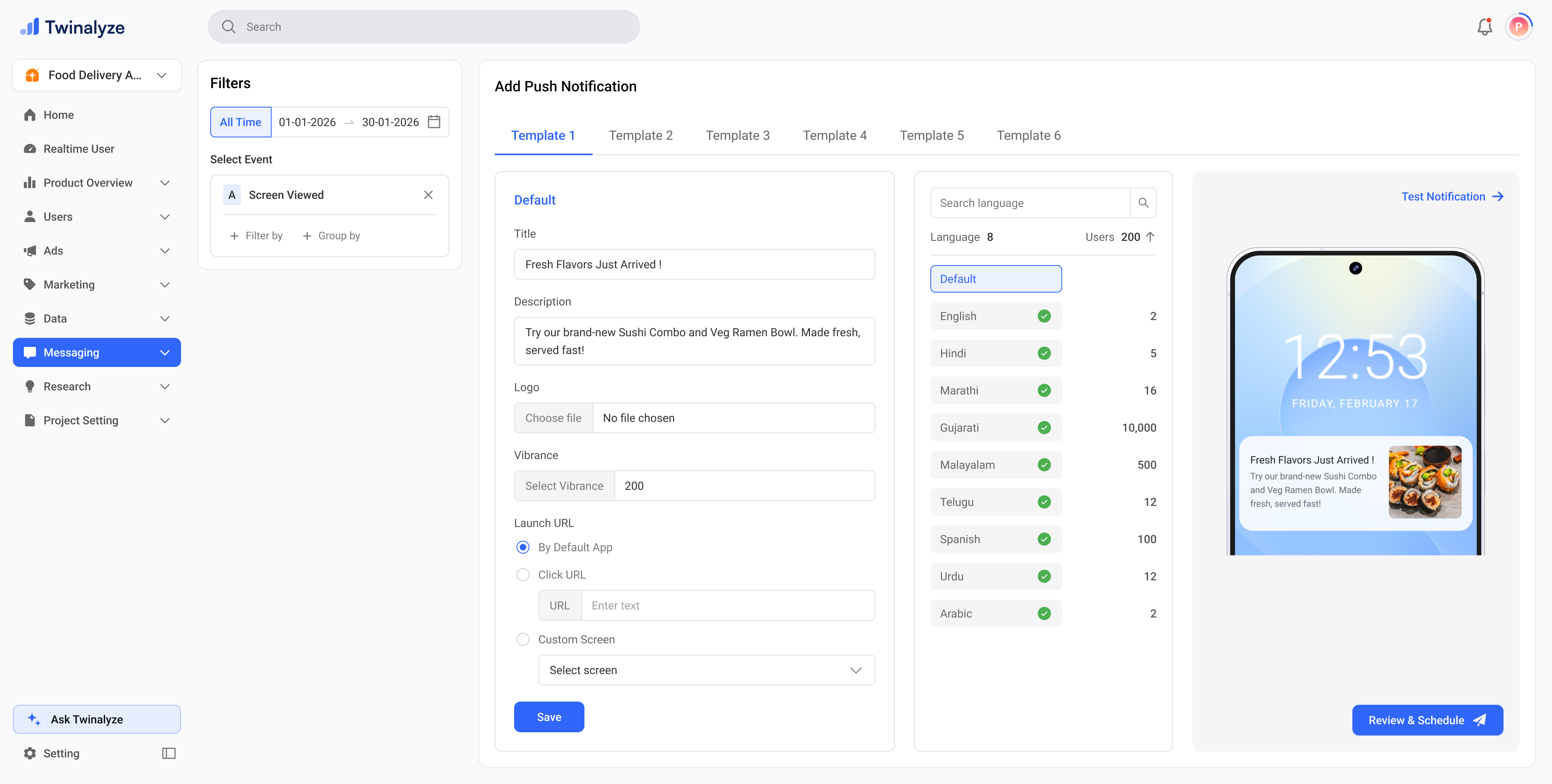
2
Review language-wise content
Use the language panel to review translated notification content for each language.The green check indicates translated content. The yellow dot indicates edited content. This helps you quickly identify which languages are ready and which ones were manually changed.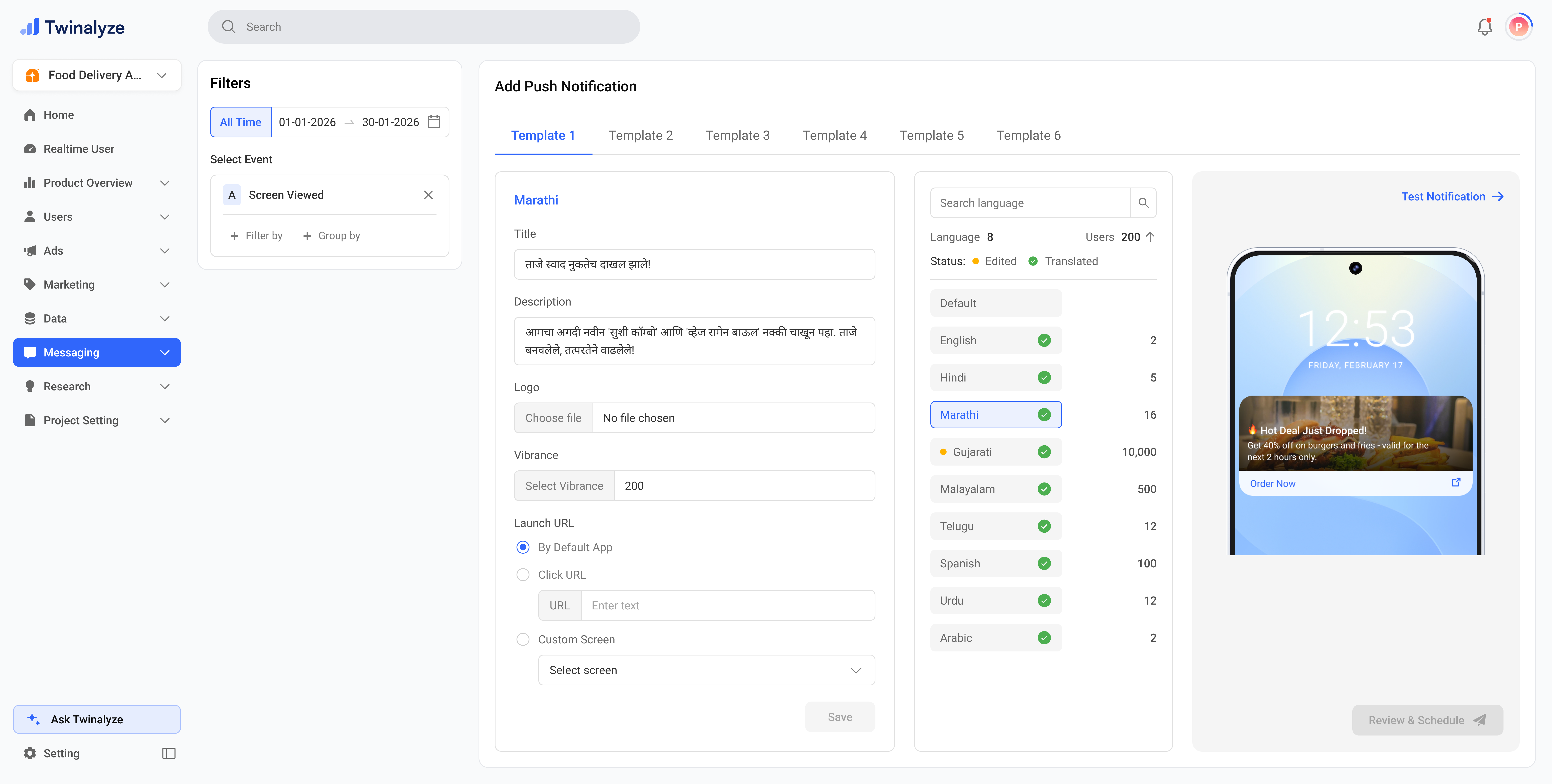
3
Create the default notification
Write the default notification content, including title, description, logo, vibrance, and launch URL. The phone preview updates so you can check how the notification will appear to users.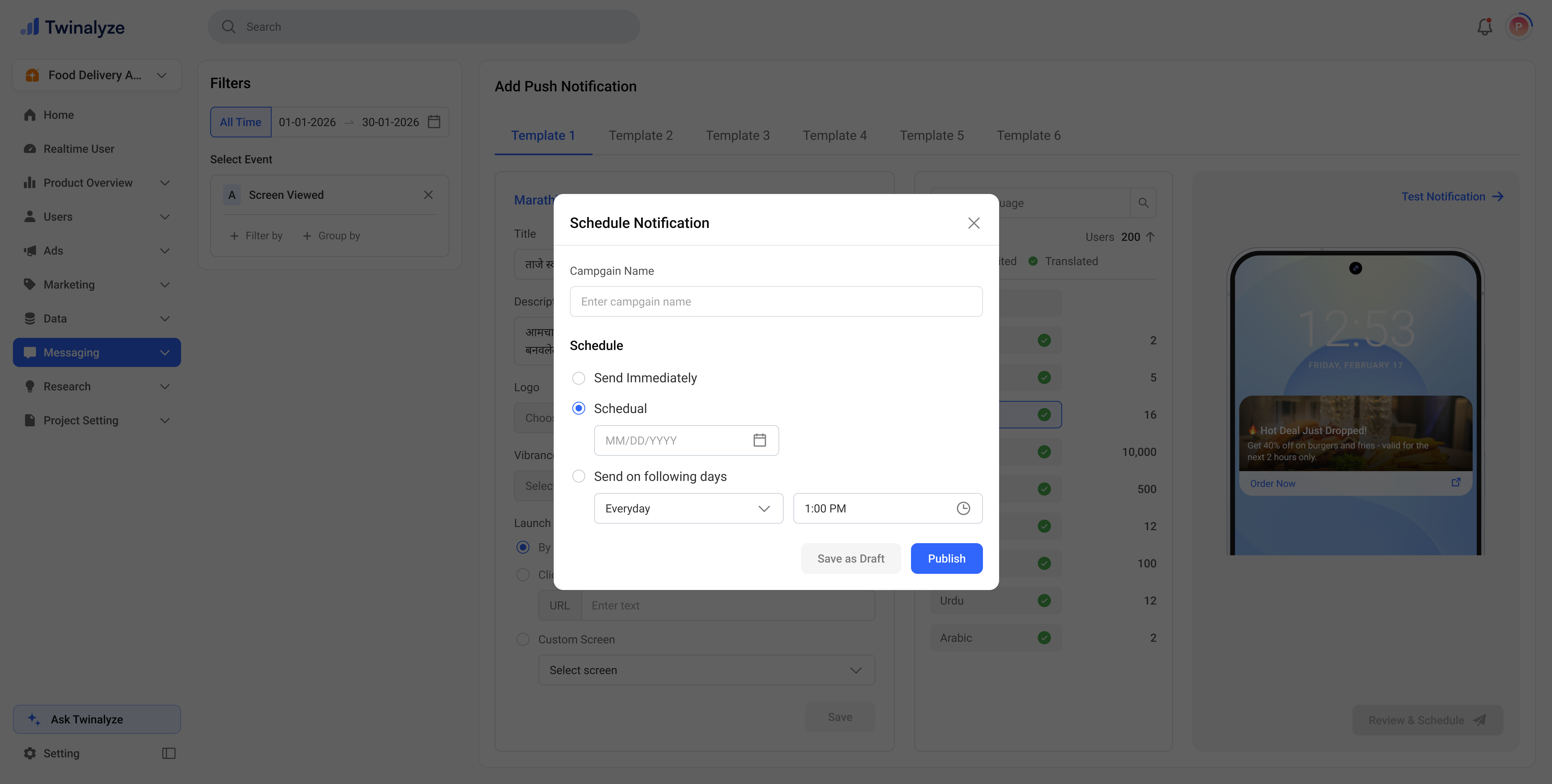
Common use cases
Send offers and promotions
Send offers and promotions
Create campaign messages for discounts, new arrivals, seasonal offers, or limited-time deals.
Re-engage inactive users
Re-engage inactive users
Target users who performed an event earlier but did not return recently.
Send language-wise notifications
Send language-wise notifications
Use translations to send the same campaign in each user’s preferred language.
Drive users to a specific screen
Drive users to a specific screen
Use Custom Screen launch URL to open a specific app screen after notification click.
Test before sending
Test before sending
Use Test Notification to verify content, image, layout, and click behavior before scheduling.