
Documentation Index

Fetch the complete documentation index at: https://docs.paraminternationalltd.com/llms.txt

Use this file to discover all available pages before exploring further.

Ad Report helps you review ad performance across countries, ad networks, and ad formats.
1

Filter ad report data

You can filter the report by date range, app name, country, ad company, and ad format. After selecting filters, click Submit to load the report.
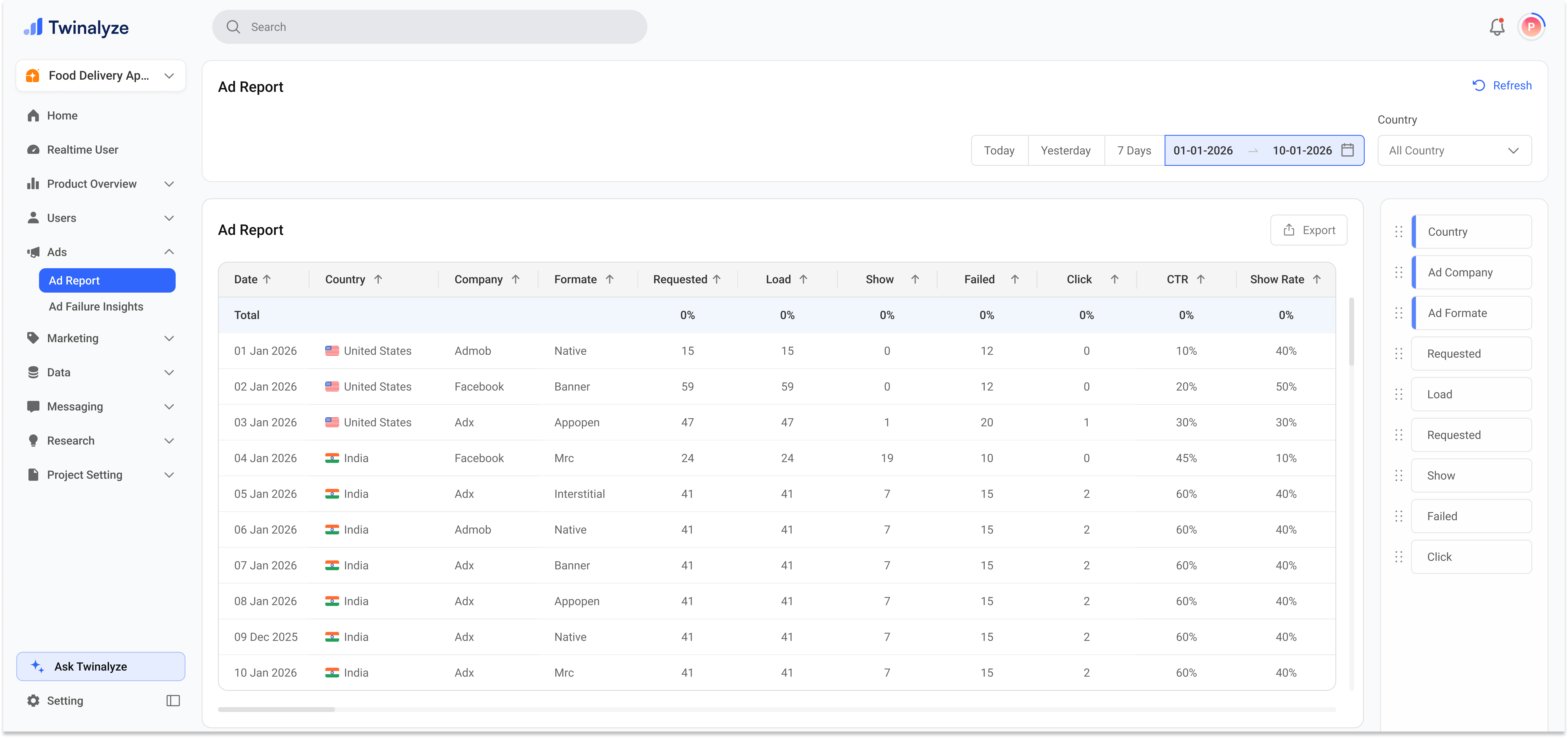
Twinalyze Ad Report page
2

Review ad performance table

The report table shows daily ad performance with country, company, format, requested ads, loads, shows, failures, clicks, and performance percentages.Use this view to compare ad delivery quality and identify where ad performance is strong or weak.
3

Customize and export report

The right-side column panel helps you organize the table fields. You can also export the report as PDF or CSV from the export menu.

What Ad Report helps you understand

01
Ad delivery

Track how many ads were requested, loaded, shown, and failed.

02
Ad engagement

Review ad clicks and CTR to understand how users interact with ads.

03
Ad comparison

Compare ad performance by country, ad company, and ad format.


Filters

Report filters

Filters help you narrow the report to the right app, country, ad company, ad format, and time period.

Date range

Select Today, Yesterday, 7 Days, or a custom date range to review ad performance for a specific period.

App name

Choose the app whose ad performance you want to analyze.

Country

Select one or more countries to compare ad performance by region.

Ad company

Filter by ad network or ad company, such as AdMob, Facebook, or other configured providers.

Ad format

Filter by format such as native, banner, interstitial, rewarded, app open, or other supported ad types.

Submit and refresh

Use Submit to apply filters and Refresh to reload the latest available report data.


Report table

The Ad Report table gives a detailed date-wise view of ad performance. Each row represents ad activity for a selected date, country, ad company, and ad format.

Metric guide

Use these fields to understand ad delivery, ad failures, and user interaction quality.

Requested

Number of ad requests sent from the app.

Load

Number of ads successfully loaded after being requested.

Show

Number of ads actually shown to users.

Failed

Number of ad requests or loads that failed.

Click

Number of times users clicked on shown ads.

CTR

Click-through rate. It helps measure how many shown ads received clicks.


How to export

Prepare the report before sharing it with your team. You can choose the columns you need, keep the table focused, and export the final report as PDF or CSV.
1

Apply filters

Select date range, app name, country, ad company, and ad format.
2

Review key metrics

Check Requested, Load, Show, Failed, Click, and CTR before exporting.
3

Select columns

Use the right-side column manager to keep the report simple and focused.
4

Export report

Choose PDF for sharing or CSV for spreadsheet analysis.
Best for quick sharing

PDF is better when the report needs to be readable, presentable, and easy to send.

Best for analysis

CSV is better when the team needs to sort, filter, compare, or calculate values manually.


Common use cases

Use Ad Company to compare providers such as AdMob, Facebook, or other ad networks.
Use Failed and Load metrics to identify where ads are not loading correctly.
Use Click and CTR to understand whether users are interacting with shown ads.
Use the Country filter to compare ad behavior across different markets.
Use Ad Format to compare native, banner, interstitial, app open, rewarded, and other formats.
Export PDF for readable sharing or CSV for spreadsheet analysis.
Ad Report helps your team understand ad delivery, failures, clicks, CTR, country-wise performance, and exportable ad analytics in one place.