A project is where Twinalyze collects data for your website or mobile app. You can create separate projects for:Documentation Index
Fetch the complete documentation index at: https://docs.paraminternationalltd.com/llms.txt
Use this file to discover all available pages before exploring further.
- Website
- Android App
- iOS App
For clean analytics, we recommend creating separate projects for website, Android, and iOS.
Create a Project
The first step is simple: create a project name. After that, choose the right setup based on your platform.Step 1: Enter project name
Enter your project name and click Save.
Step 2: Create more projects anytime
After your first project is created, you can use the project dropdown from the left sidebar to switch projects or create more projects.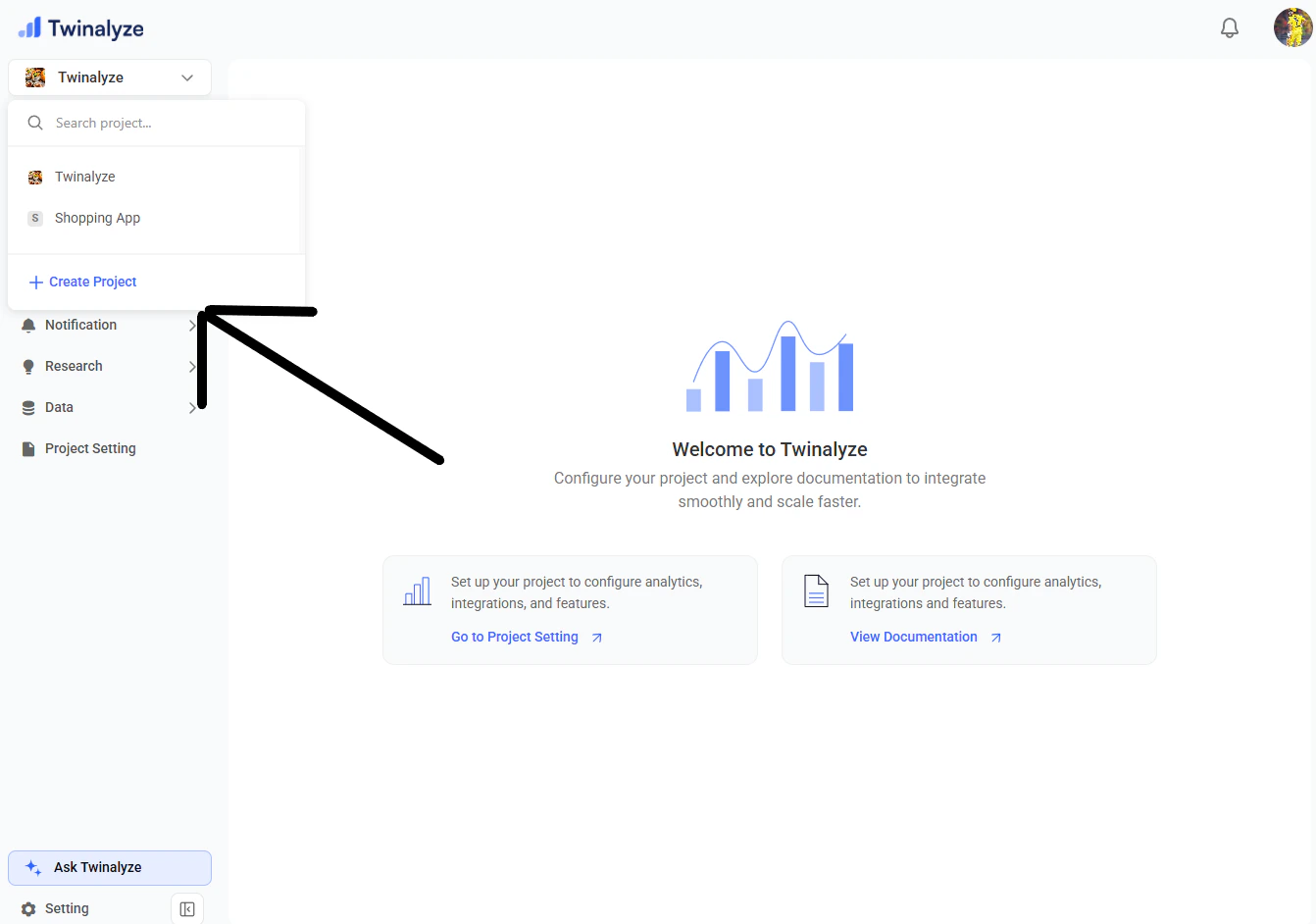
This is useful when you want to manage separate projects for your website, Android app, and iOS app.
Recommended Setup
For clean analytics, create separate projects for each platform.| Product | Recommended Project |
|---|---|
| Website | One Web project |
| Android App | One Android project |
| iOS App | One iOS project |
Separate projects help you keep website, Android, and iOS data clean and easy to compare.
Edit Project
Use Edit Project when you want to update project details such as logo, name, description, SDK keys, and project configuration.Step 1: Open Project Setting
Click Project Setting from the left sidebar.
Step 2: Edit project details
In the Overview tab, update the project details.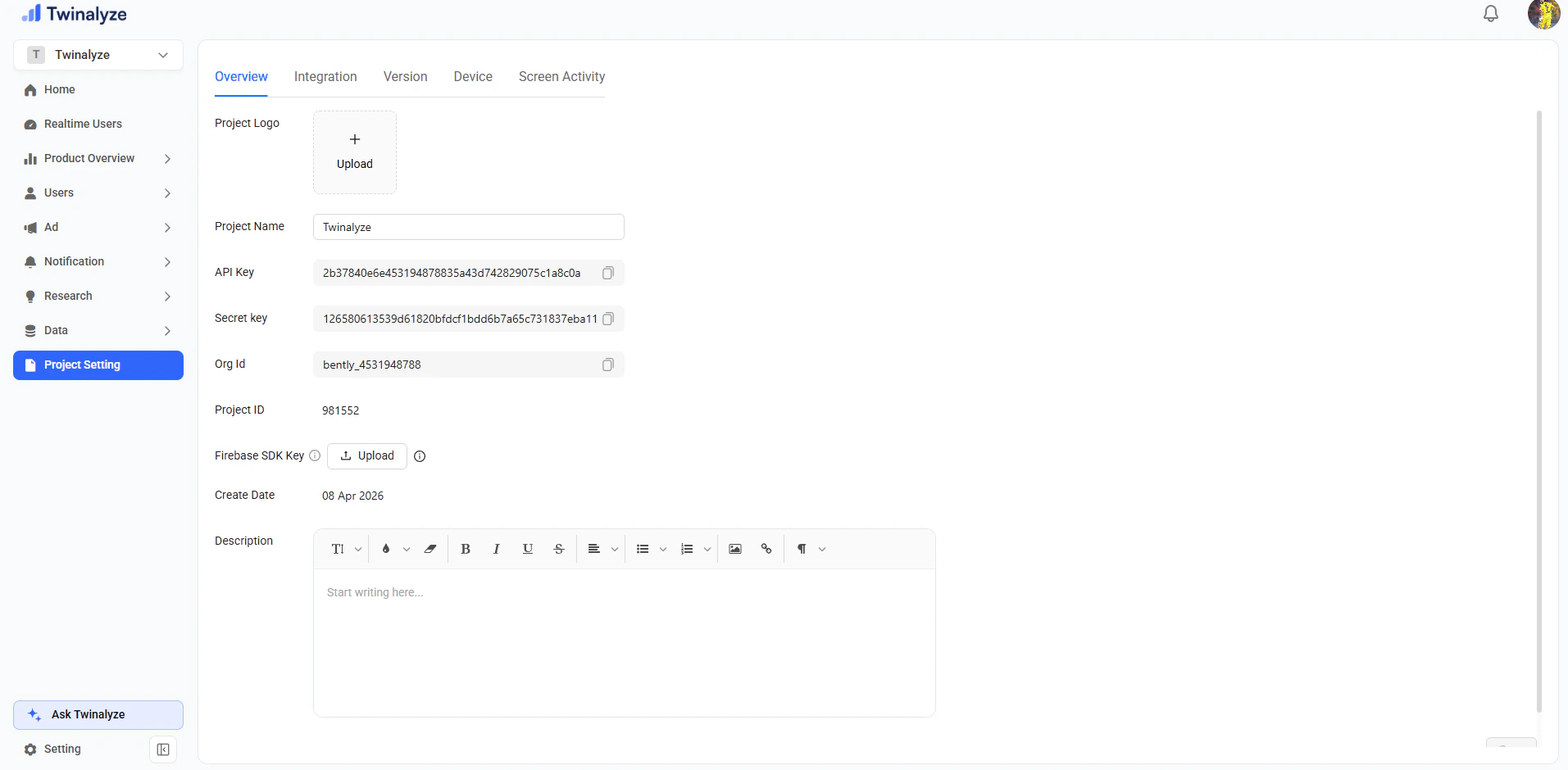
Details you can edit
| Field | Description |
|---|---|
| Project Logo | Upload or update the project logo |
| Project Name | Change the project name |
| Firebase SDK Key | Upload or update Firebase SDK key |
| Description | Add or update project description |
| Version / Device / Screen Activity | Manage project-related configuration |
Delete Project
Step 1: Click Delete Project
Click the Delete Project button from project settings.
Step 2: Confirm Delete
Confirm the delete action from the confirmation popup.
Delete Rule
| Project Status | Can Delete? |
|---|---|
| Project is live | No |
| Project is not live | Yes |
If the project is live, first stop using it in your website or app, then try deleting it again.
Best Practices
Edit project details carefully
Edit project details carefully
Project name, logo, and description should match the actual website or app.
Do not share secret keys publicly
Do not share secret keys publicly
Delete only unused projects
Delete only unused projects
Delete a project only when it is no longer required and not connected to a live website or app.
Check live status before deleting
Check live status before deleting
A live project cannot be deleted. Make sure the project is inactive before deleting it.