Get started with Twinalyze in a few simple steps.Documentation Index
Fetch the complete documentation index at: https://docs.paraminternationalltd.com/llms.txt
Use this file to discover all available pages before exploring further.
This guide helps you create your account, log in, create your organization, and set up your first project for Web or Android.
Quick setup
Create your account and get started with Twinalyze in a few minutes.
Web & Android
Follow a clear setup flow for both Web and Android projects.
Project ready
Create your organization and project before starting SDK integration.
Before you begin
Make sure you have:- A valid email address
- Access to the Twinalyze dashboard
- Basic information about your app or website
- Your platform choice: Web or Android
You only need one Twinalyze account. After login, you can create multiple projects for Web, Android, Flutter, React Native, and other platforms.
Choose your platform
- Web
- Android
Web Account Setup
Follow these steps to create your account and start your first Web project.1. Open the login page
Visit the Twinalyze login page.
2. Sign up with email and password
If you do not already have an account, choose the sign-up option and enter your email and password.
3. Log in to the dashboard
After creating your account, log in and open the Twinalyze dashboard.
4. Create your organization
Your organization helps you manage projects, users, permissions, and settings in one place.
- Organization name
- Company name
- Product or brand name
- Team details if needed
5. Create your Web project
Now create your first Web project.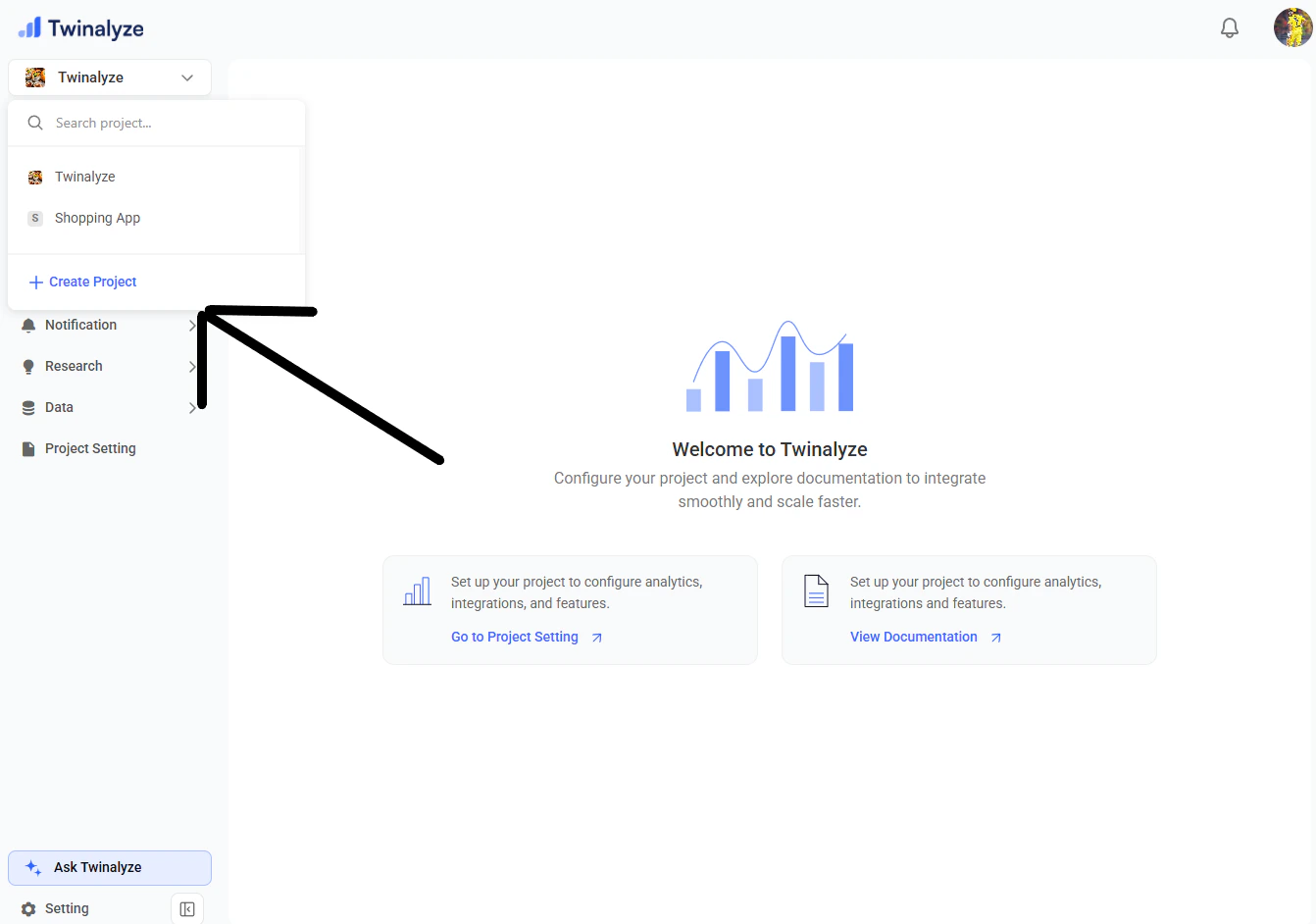
- Project name
- Platform: Web
- Website name
- Website URL
- Time zone and region if needed
What happens after project creation?
After your organization and project are created, you can start configuring Twinalyze for your app or website.Get project credentials
Use project keys and identifiers to connect your app or website with Twinalyze.
Install SDK
Add the Web or Android SDK to your application.
Track events
Start sending analytics, ads, notification, and user behavior events.
Best practices
Use a clear organization name
Use a clear organization name
Choose an organization name that matches your company, product, or brand. This helps your team manage projects easily.
Create separate projects for each platform
Create separate projects for each platform
Keep Web and Android projects separate for better data clarity and reporting.
Check project settings before SDK integration
Check project settings before SDK integration
Make sure the platform, project name, and required details are correct before installing the SDK.
Use proper project naming
Use proper project naming
Use names like
Twinsho Web, Twinsho Android, or Client App Production so your team can identify projects quickly.Invite your team after setup
Invite your team after setup
Once your setup is complete, invite teammates and assign roles from the dashboard.