Documentation Index
Fetch the complete documentation index at: https://docs.paraminternationalltd.com/llms.txt
Use this file to discover all available pages before exploring further.
Users, events, and properties are the core data model of Twinalyze.
In simple words:
| Concept | Meaning |
|---|
| User | Who is using your app or website |
| Event | What action the user performs |
| Property | Extra details about the user or event |
Twinalyze identifies user behavior using events and properties. A user performs events, and each event can contain useful properties.
How they work together
User visits your product
A user opens your website or app.
User performs an action
The action is tracked as an event.
Twinalyze adds properties
Properties describe the event, user, device, source, or page.
Dashboard shows insights
Twinalyze uses this data to show users, reports, events, and behavior insights.
Simple example
A user opens a product page and clicks Add to Cart.
{
  "userId": "user_1025",
  "eventName": "add_to_cart",
  "properties": {
    "productName": "Hair Clip",
    "price": 299,
    "pageUrl": "/products/hair-clip",
    "device": "Chrome Browser",
    "country": "India"
  }
}
| Part | Example | Meaning |
|---|
| User | user_1025 | Person who performed the action |
| Event | add_to_cart | Action performed by the user |
| Properties | productName, price, pageUrl, device, country | Extra details about the action |
Where to find users in dashboard
Users are available from the left sidebar:
The Users section helps you understand user activity, engagement, retention, and growth.
Users section includes
| Section | Purpose |
|---|
| Page Insights | Understand page-level user behavior |
| User Engagement | Analyze how users interact with your product |
| User Retention | See how many users return over time |
| User Growth | Track user growth and activity trends |
Use the Users section when you want to understand who your users are and how they behave over time.
Where to manage events
Events are available from:
Dashboard → Data → Events
Events screen helps you manage
| Option | Meaning |
|---|
| Event Name | Name of the tracked action |
| Custom Event Name | Display name or readable event name |
| Source | Platform where the event comes from, such as Android, Web, or iOS |
| Auto Status | Whether the event is auto captured |
| Manual Status | Whether the event can be tracked manually |
| Status | Whether the event is active or inactive |
| Visible | Whether the event is visible in dashboard views |
| Search | Find events quickly |
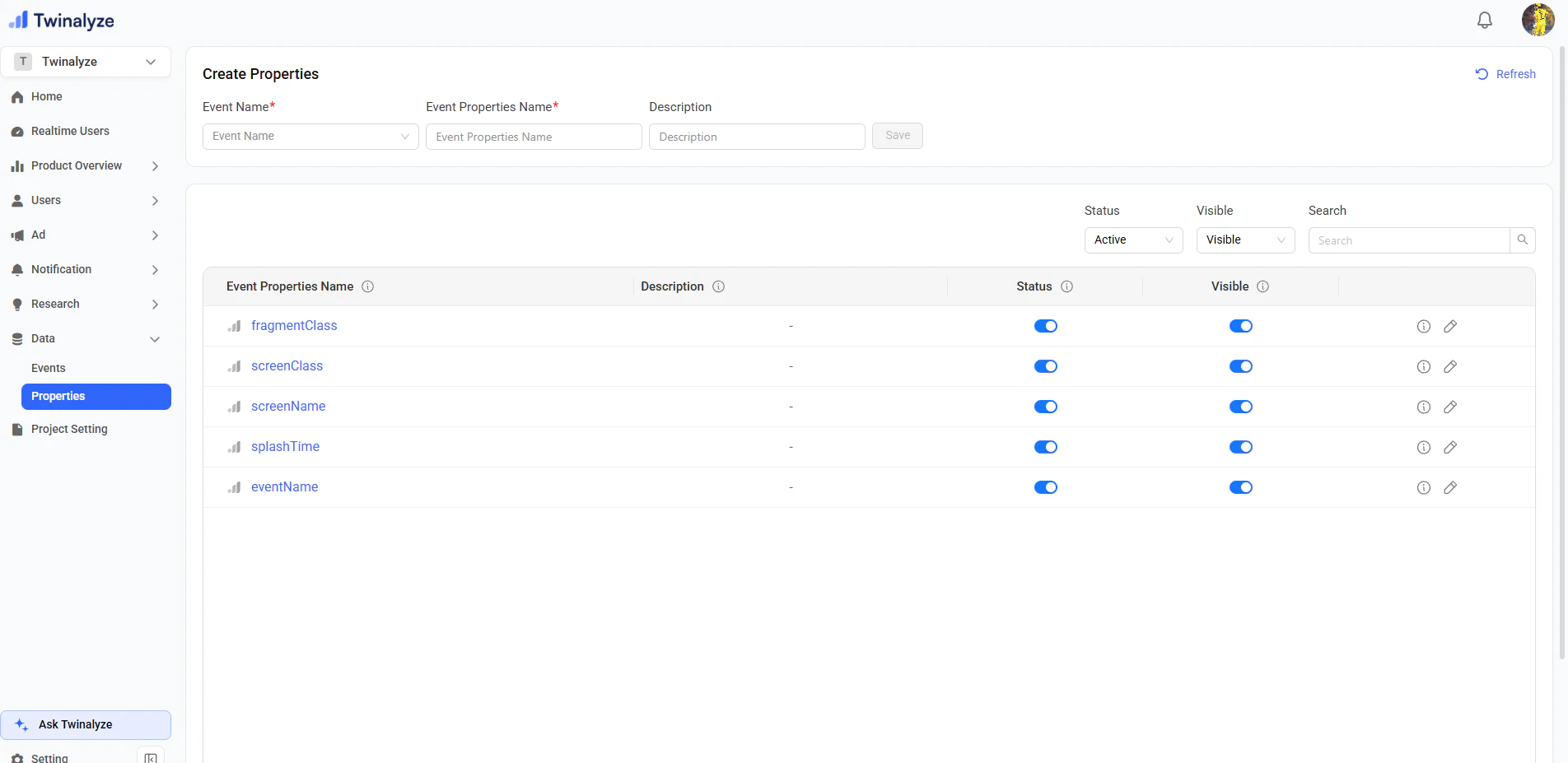
Where to manage properties
Properties are available from:
Dashboard → Data → Properties
Event vs Property
| Event | Property |
|---|
| Tells what happened | Gives extra detail about what happened |
Example: page_view | Example: page_url, page_title |
Example: click | Example: button_text, element_id |
Example: add_to_cart | Example: product_name, price |
Event tells the action. Property explains the action in more detail.
Common event and property examples
| Event | Useful properties |
|---|
page_view | page URL, page title, referrer |
click | button text, element ID, page URL |
screen_view | screen name, screen class, app version |
add_to_cart | product name, price, quantity |
payment_failed | amount, payment method, error reason |
notification_opened | campaign name, notification ID |
What to read next
Next, learn how Twinalyze automatically captures common events from your app or website.