> ## Documentation Index
> Fetch the complete documentation index at: https://docs.paraminternationalltd.com/llms.txt
> Use this file to discover all available pages before exploring further.
# Create-Message
> Create, personalize, localize language, deep level targetting, Schedule message and get access to many templates.
Messaging helps you create targeted push notifications for your app users.
Use the left-side **Filters** panel to select the audience.
First choose the date range, then click **Add Events**. The selected event controls which user group will be targeted for the notification.
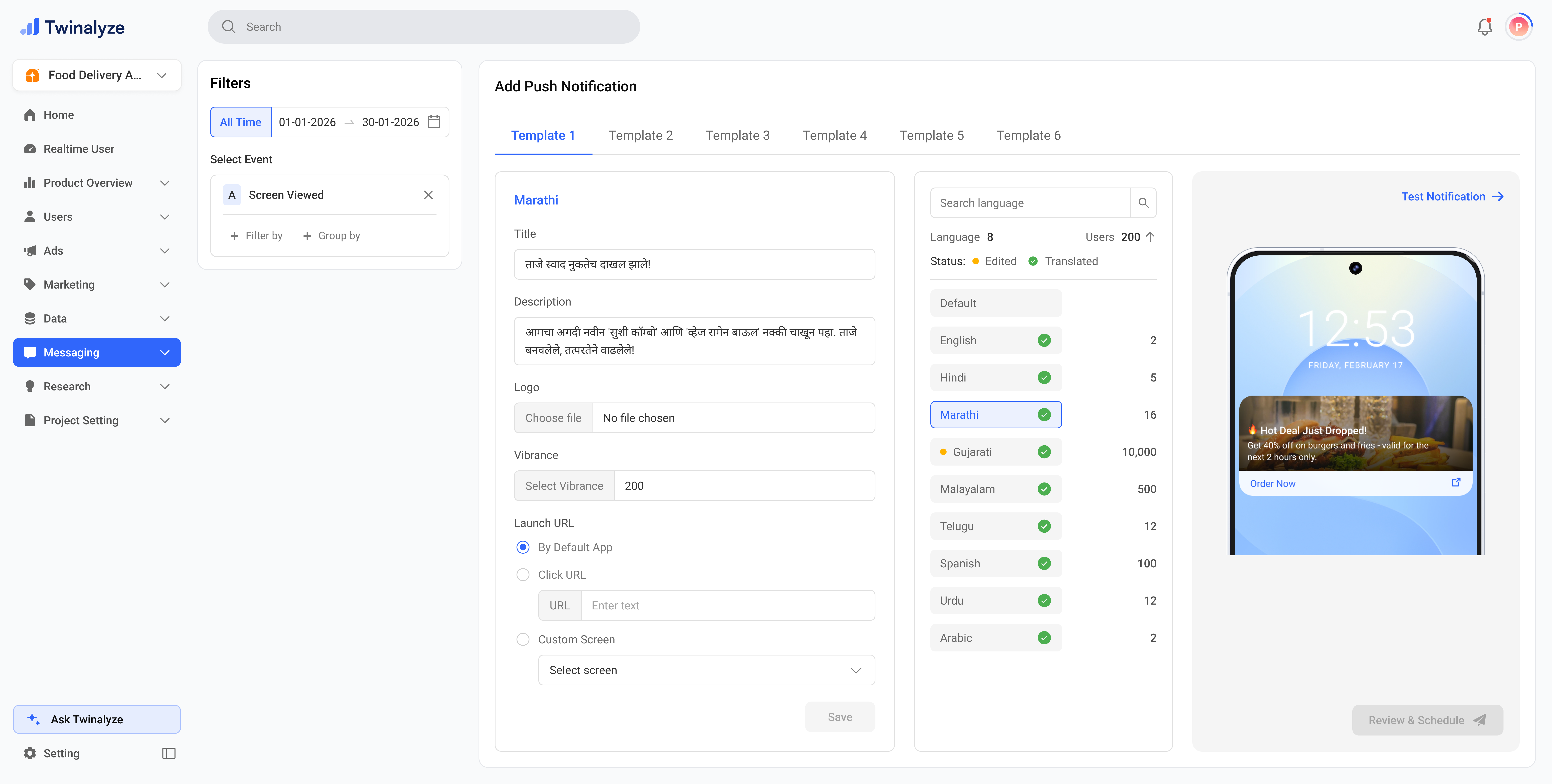
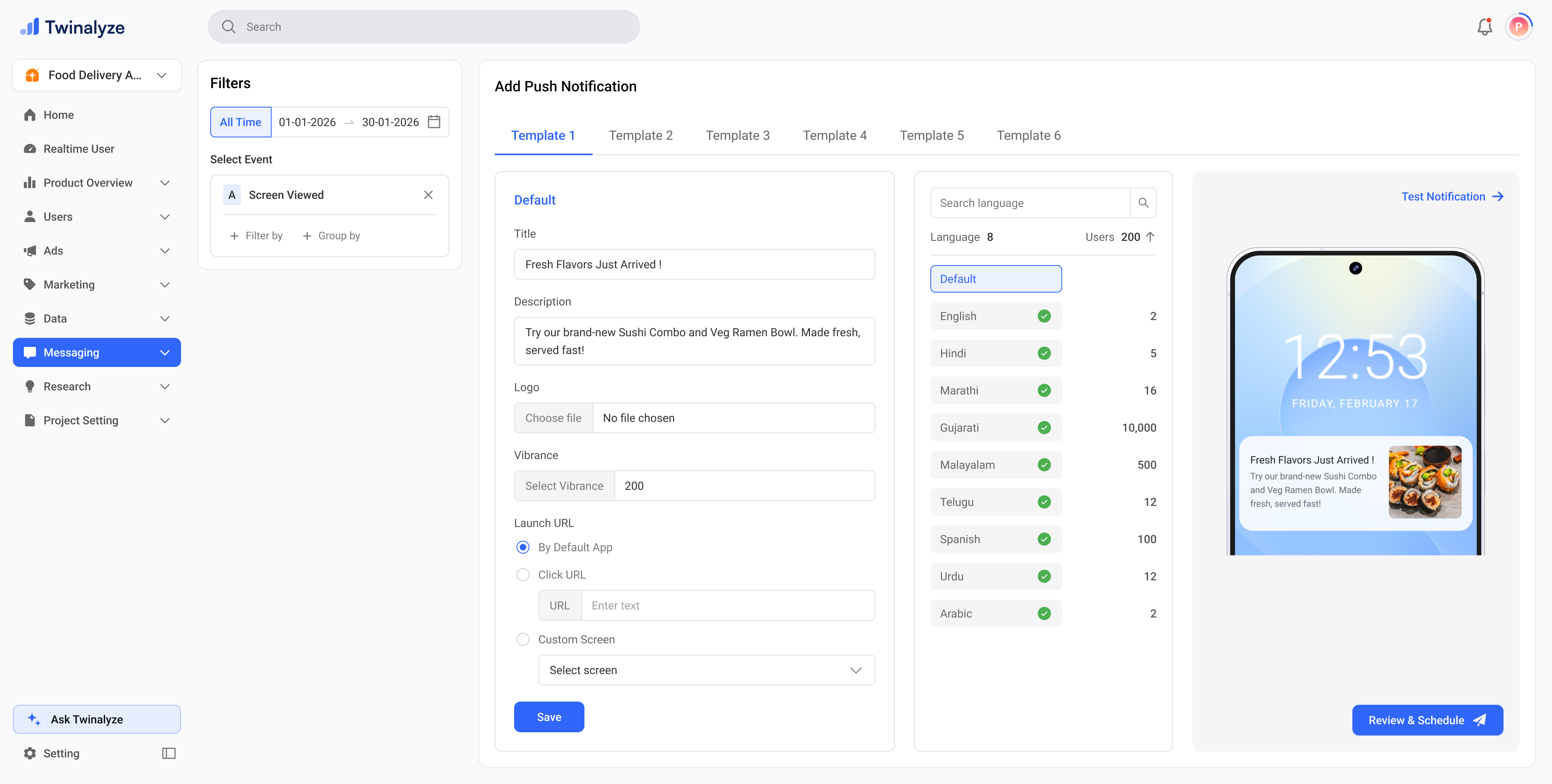 Use the language panel to review translated notification content for each language.
The green check indicates translated content. The yellow dot indicates edited content. This helps you quickly identify which languages are ready and which ones were manually changed.
Use the language panel to review translated notification content for each language.
The green check indicates translated content. The yellow dot indicates edited content. This helps you quickly identify which languages are ready and which ones were manually changed.
 Write the default notification content, including title, description, logo, vibrance, and launch URL. The phone preview updates so you can check how the notification will appear to users.
 ***
## Common use cases
Create campaign messages for discounts, new arrivals, seasonal offers, or limited-time deals.
Target users who performed an event earlier but did not return recently.
Use translations to send the same campaign in each user’s preferred language.
Use Custom Screen launch URL to open a specific app screen after notification click.
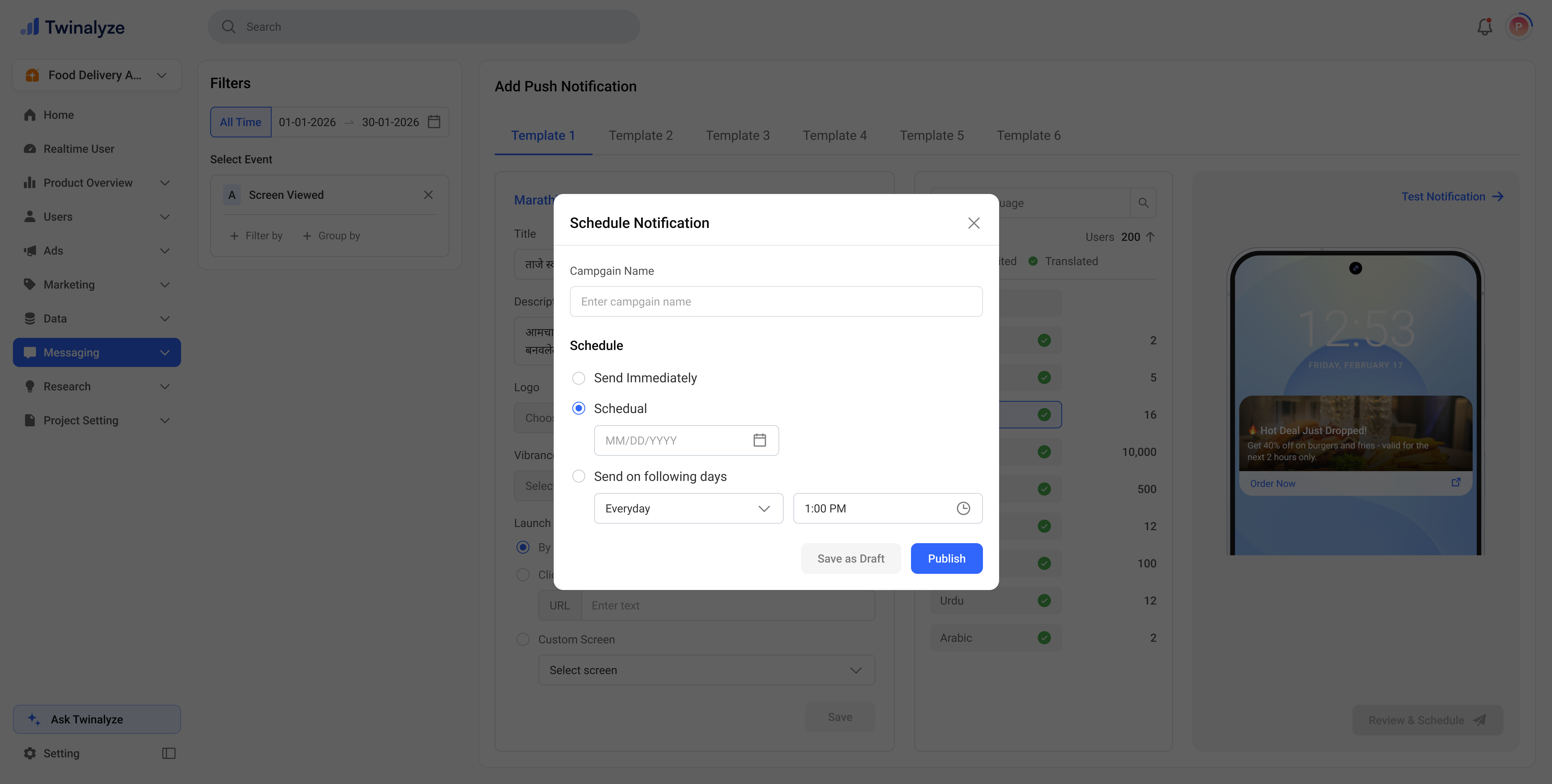
Use Test Notification to verify content, image, layout, and click behavior before scheduling.
***
## Common use cases
Create campaign messages for discounts, new arrivals, seasonal offers, or limited-time deals.
Target users who performed an event earlier but did not return recently.
Use translations to send the same campaign in each user’s preferred language.
Use Custom Screen launch URL to open a specific app screen after notification click.
Use Test Notification to verify content, image, layout, and click behavior before scheduling.