> ## Documentation Index
> Fetch the complete documentation index at: https://docs.paraminternationalltd.com/llms.txt
> Use this file to discover all available pages before exploring further.

# Roles & Permissions

> Manage organization members, assign roles, and control access across Twinalyze.

Twinalyze uses role-based access control at the organization level. Each member is assigned a role for **Menu Group**, **Main Menu**, and **Sub Menu** permissions configured for that role.

<div className="organization-role-table">
  <div className="organization-role-header">
    <div>Role</div>
    <div>Description</div>
  </div>

  <div className="organization-role-row">
    <div className="organization-role-name">Owner</div>
    <div className="organization-role-description">Full control</div>
  </div>

  <div className="organization-role-row">
    <div className="organization-role-name">Admin</div>

    <div className="organization-role-description">
      Manages organization members, projects, events, and integrations.
    </div>
  </div>

  <div className="organization-role-row">
    <div className="organization-role-name">Analyst</div>

    <div className="organization-role-description">
      Read-only access and can export data.
    </div>
  </div>

  <div className="organization-role-row">
    <div className="organization-role-name">Viewer</div>

    <div className="organization-role-description">
      Read-only access. Cannot modify anything.
    </div>
  </div>
</div>

## Invite a member

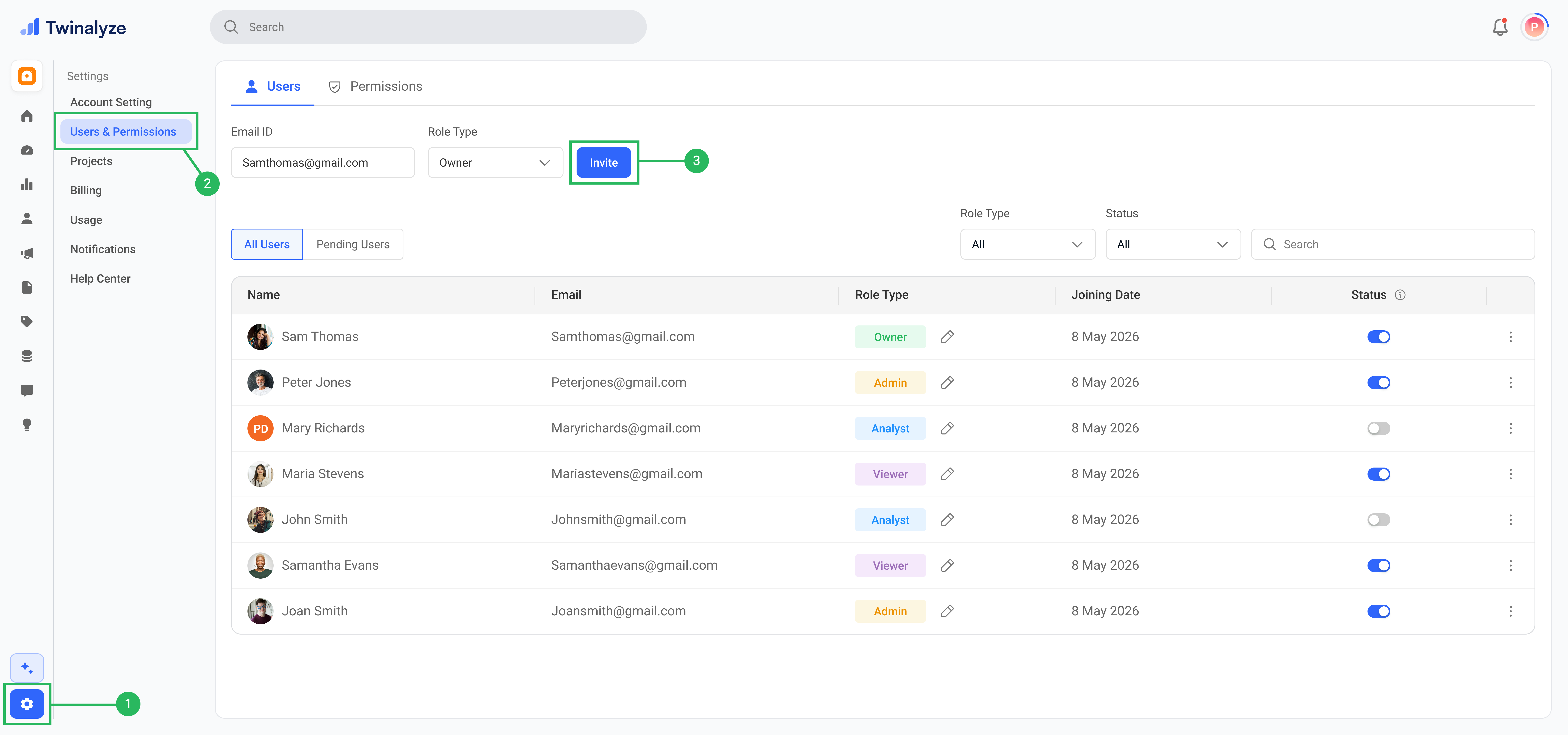
Follow these steps to invite a member and assign the correct organization role.

<Steps titleSize="h3">
  <Step title="Send the invitation">
    Review the email address and selected role, then click **Invite**.

    Twinalyze sends an invitation email with instructions for joining the organization.

    <Frame>
      <img src="https://mintcdn.com/chartbazaar/wMGaVZiJmxc3S3os/images/role-and-permission/roleAllUuser.png?fit=max&auto=format&n=wMGaVZiJmxc3S3os&q=85&s=84ae4d89beaf0e5a184ad0460118c9de" alt="Send a Twinalyze organization invitation" width="7680" height="3600" data-path="images/role-and-permission/roleAllUuser.png" />
    </Frame>
  </Step>

  <Step title="Review the pending invitation">
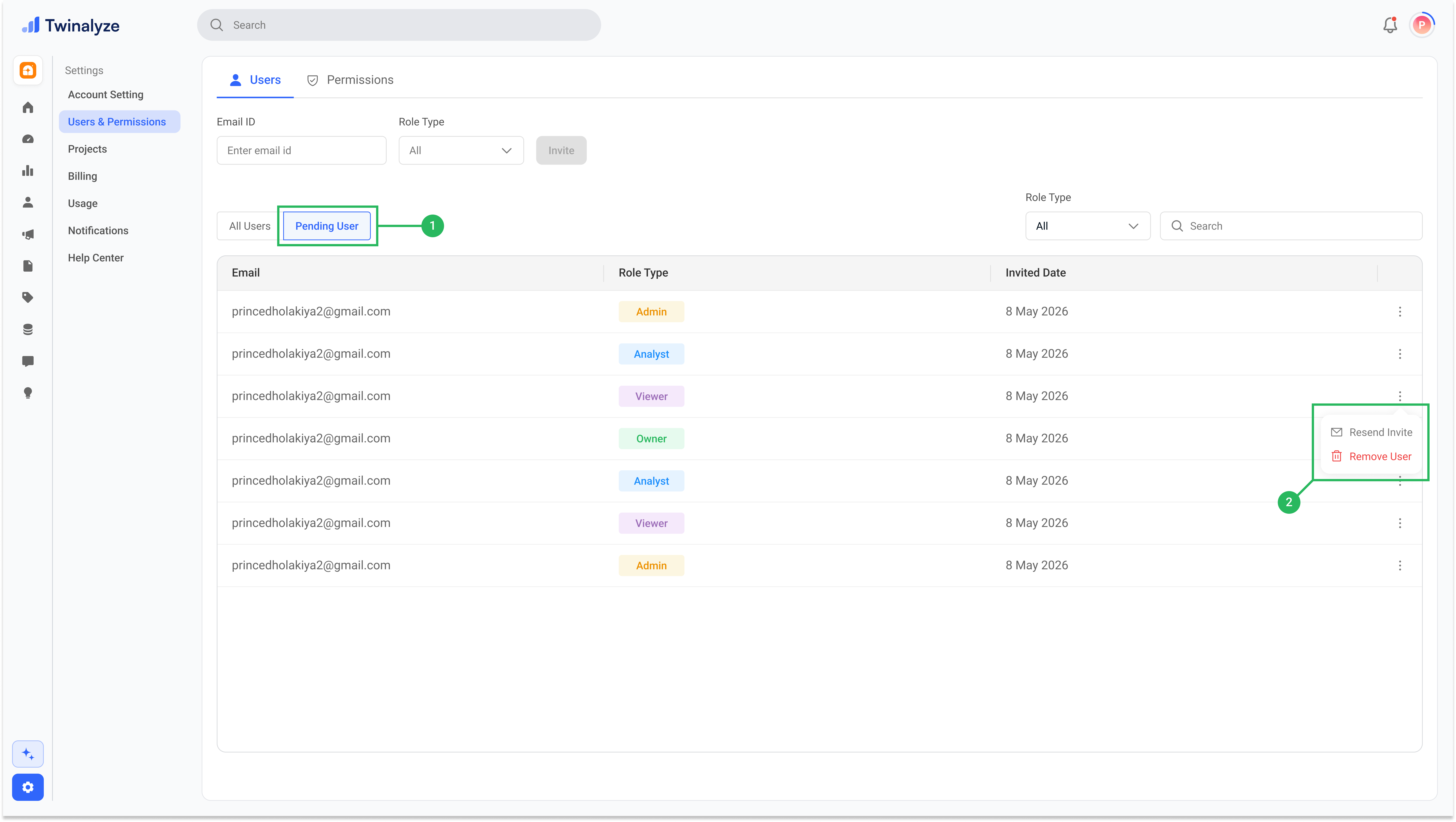
    Open the **Pending User** tab to confirm that the invitation was sent.

    The member remains in this section until they accept the invitation.

    <Frame>
      <img src="https://mintcdn.com/chartbazaar/wMGaVZiJmxc3S3os/images/role-and-permission/PendingUser.png?fit=max&auto=format&n=wMGaVZiJmxc3S3os&q=85&s=9e057aa1d194915747c15e6502c84d98" alt="Twinalyze pending user invitations" width="7712" height="4352" data-path="images/role-and-permission/PendingUser.png" />
    </Frame>
  </Step>
</Steps>

***

## Best practices

<AccordionGroup>
  <Accordion title="Assign the lowest required access">
    Give each member only the role and permissions required for their
    responsibilities.
  </Accordion>

  <Accordion title="Keep the number of Owners limited">
    Assign the Owner role only to people who require complete control over the
    organization.
  </Accordion>

  <Accordion title="Use Admin for trusted managers">
    Assign Admin access to members who manage projects, users, settings,
    integrations, and permissions.
  </Accordion>

  <Accordion title="Use Analyst for analytics teams">
    Assign Analyst access to members who work with users, events, reports,
    engagement, retention, and product performance.
  </Accordion>

  <Accordion title="Use Viewer for read-only access">
    Assign Viewer access to stakeholders or team members who only need to
    review permitted dashboards and reports.
  </Accordion>

  <Accordion title="Review pending invitations regularly">
    Revoke invitations that were sent incorrectly or are no longer required.
  </Accordion>

  <Accordion title="Review access when responsibilities change">
    Update a member's role and permissions whenever their position or
    responsibilities change.
  </Accordion>
</AccordionGroup>

<div className="twinalyze-bottom-nav">
  <a href="/overview/organization-and-project/core-features" className="twinalyze-nav-side">
    <span className="twinalyze-nav-arrow">‹</span>
    <span>Previous</span>
  </a>

  <a href="/overview/Data/users-events-properties" className="twinalyze-nav-center">
    <strong>Users, events, and properties</strong>
    <span>Understand how Twinalyze organizes analytics data.</span>
  </a>

  <a href="/overview/Data/users-events-properties" className="twinalyze-nav-side">
    <span>Next</span>
    <span className="twinalyze-nav-arrow">›</span>
  </a>
</div>