> ## Documentation Index
> Fetch the complete documentation index at: https://docs.paraminternationalltd.com/llms.txt
> Use this file to discover all available pages before exploring further.
# Create a Project
> Create your Twinalyze project in minutes, configure its details, and start tracking your website or mobile app.
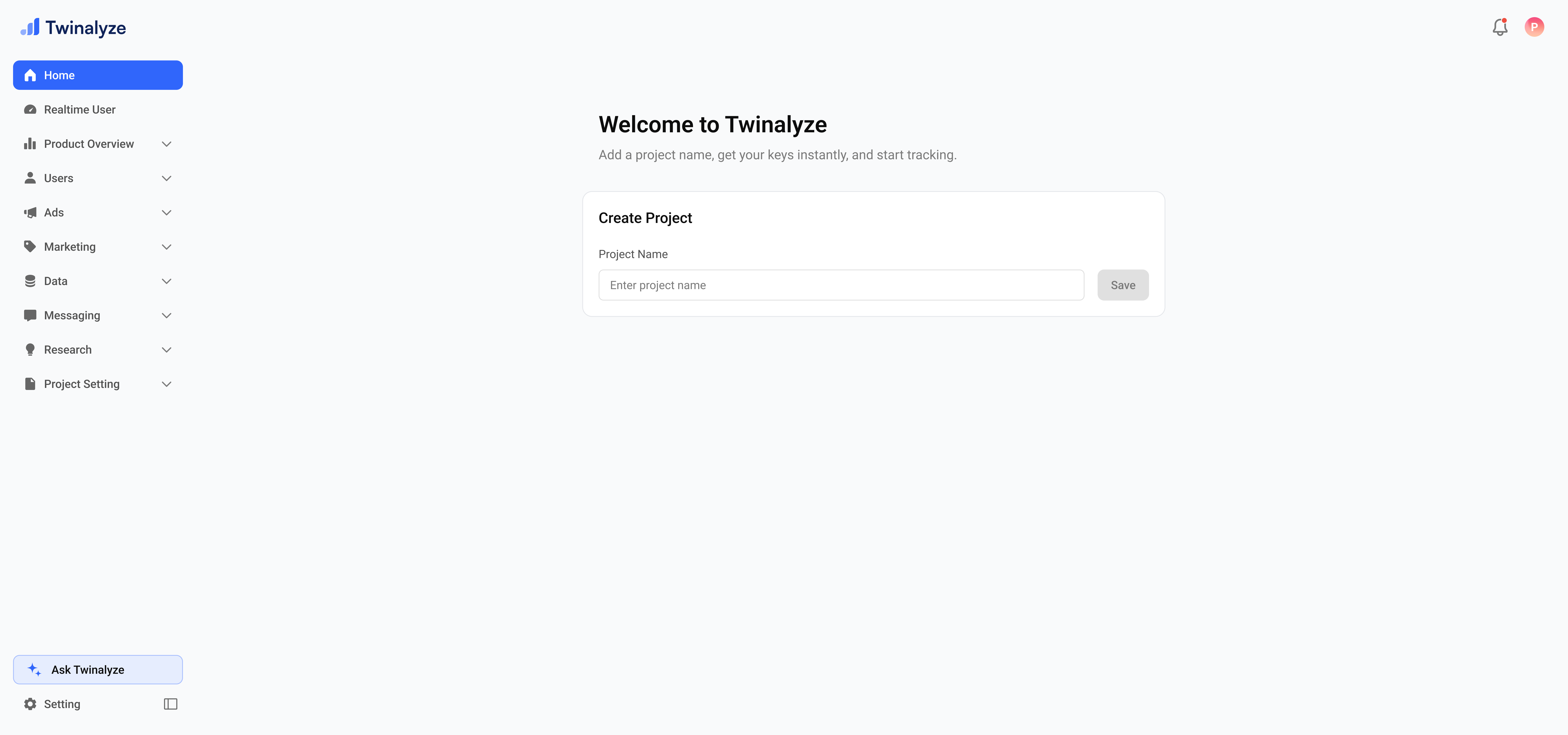
Create a project
Enter a full name for your project and click **Save**.
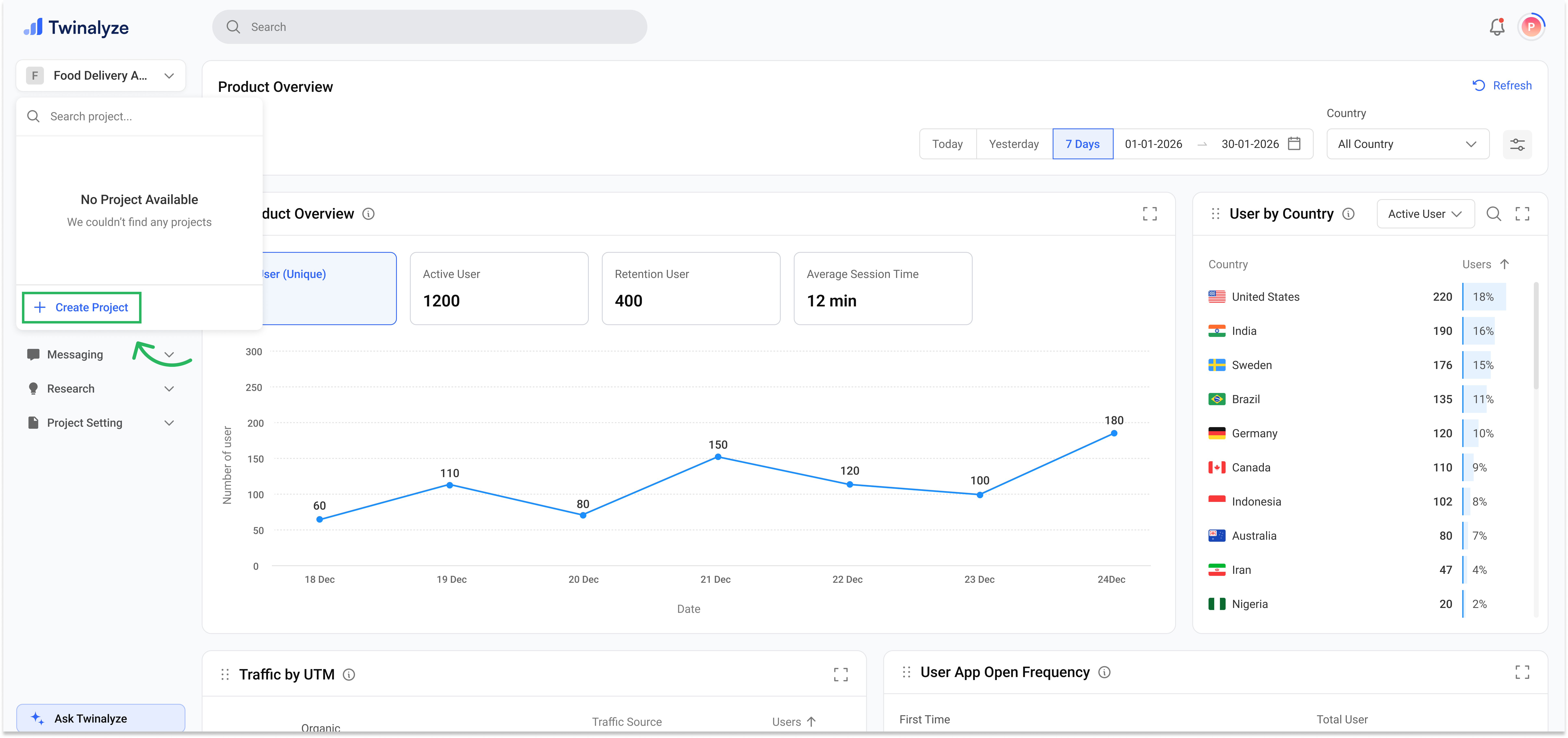
 If you want to crete more project than open the project dropdown from the left sidebar. Select the + icon to create multiple projects.
 ***
## Edit project
Use the project settings when you need to update your project name, logo, description, configuration, or platform details.
Open the **Project setting → Overview** section and update the required project information.
***
## Edit project
Use the project settings when you need to update your project name, logo, description, configuration, or platform details.
Open the **Project setting → Overview** section and update the required project information.
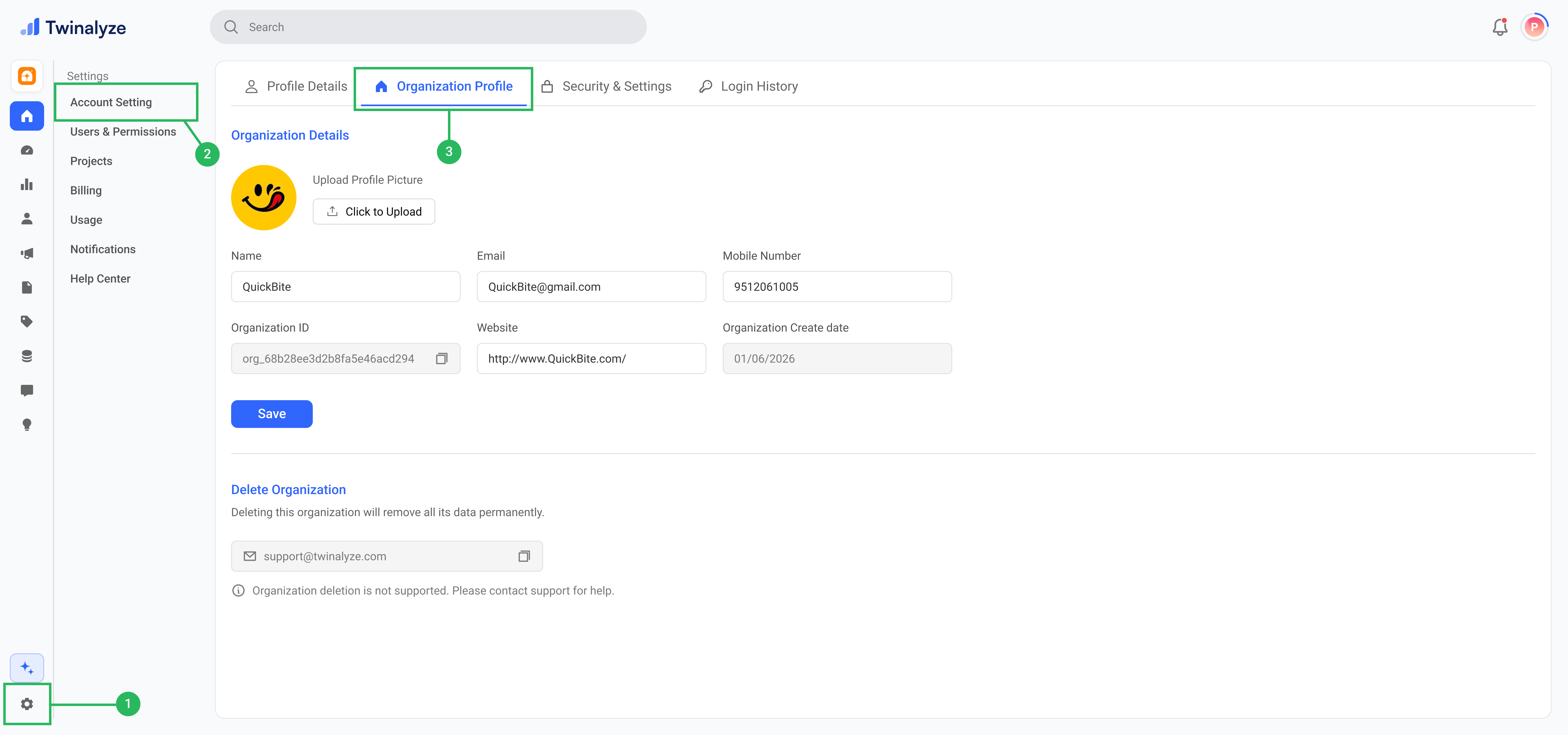 Review the updated project information and click **Save**.
***
## Best practices
Use your website, application, brand, or product name so team members can identify the correct project easily.
Use a different project for each website or application when their users, events, analytics, or configurations need to remain separate.
Select the platform that matches your product, such as Web, Android, or iOS, before configuring the SDK.
Update the project name, logo, description, and platform information whenever your product details change.
Do not expose sensitive credentials in public repositories, frontend code, screenshots, or shared documents.
Check the active project from the project dropdown before updating settings, connecting integrations, or configuring an SDK.
Review the updated project information and click **Save**.
***
## Best practices
Use your website, application, brand, or product name so team members can identify the correct project easily.
Use a different project for each website or application when their users, events, analytics, or configurations need to remain separate.
Select the platform that matches your product, such as Web, Android, or iOS, before configuring the SDK.
Update the project name, logo, description, and platform information whenever your product details change.
Do not expose sensitive credentials in public repositories, frontend code, screenshots, or shared documents.
Check the active project from the project dropdown before updating settings, connecting integrations, or configuring an SDK.