> ## Documentation Index
> Fetch the complete documentation index at: https://docs.paraminternationalltd.com/llms.txt
> Use this file to discover all available pages before exploring further.

# Organization Settings

> Manage profile details, organization profile, security settings, login history, users, and permissions in Twinalyze.

Settings is where users and admins manage account information, organization details, security preferences, login activity, team members, roles, and permissions.

<div className="twinalyze-tabs">
  <Tabs>
    <Tab title="Manage Profile">
      <Steps titleSize="h3">
        <Step title="Profile Details">
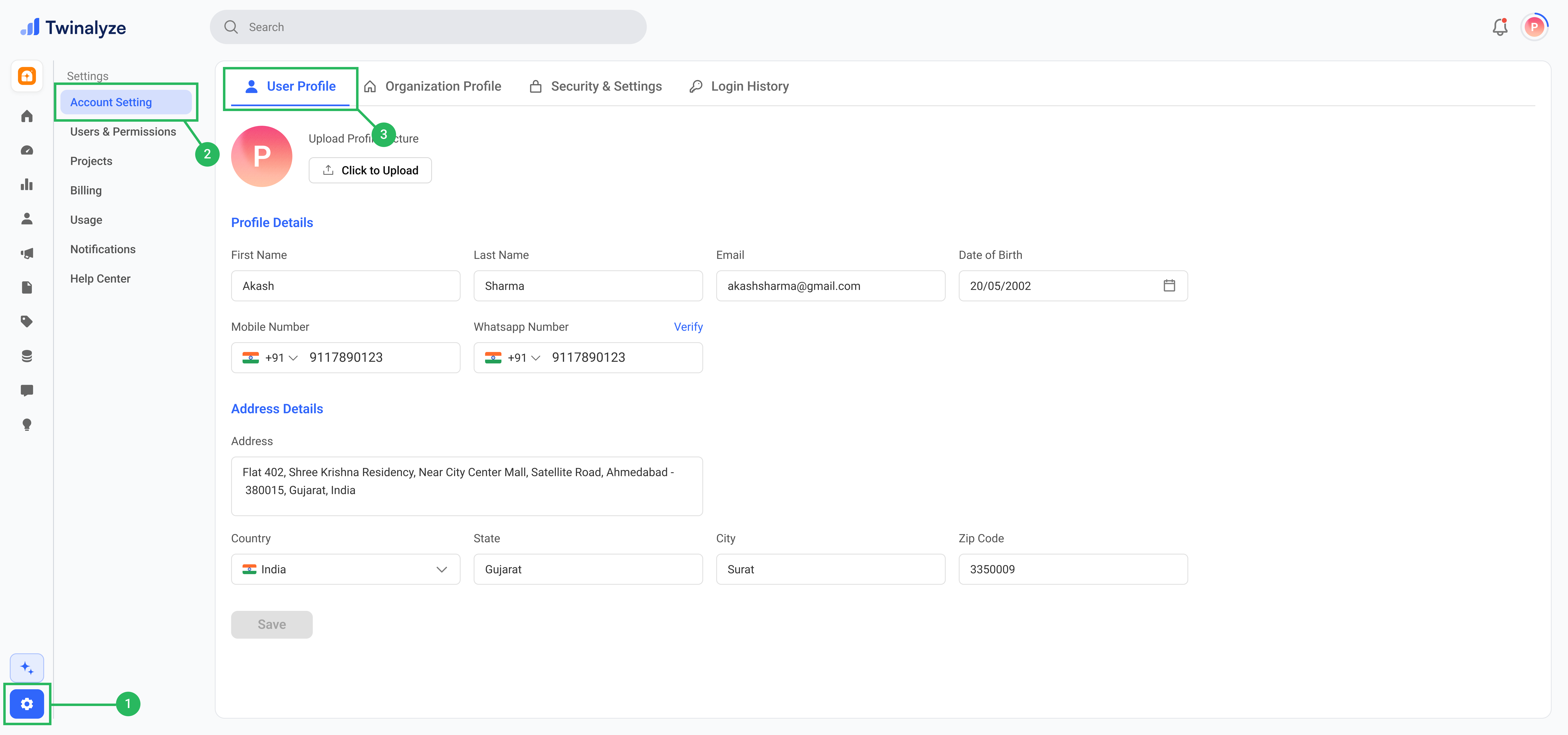
          Update profile picture, personal details, mobile number, date of birth, and address information.
          <Frame>
            <img src="https://mintcdn.com/chartbazaar/2wSN9uurJBRb4A_3/images/Organization-settings/Userprofile.png?fit=max&auto=format&n=2wSN9uurJBRb4A_3&q=85&s=2c54bfd33e0fcca18e032a96e48e43d9" alt="Twinalyze Profile Details settings page" width="7680" height="3600" data-path="images/Organization-settings/Userprofile.png" />
          </Frame>
        </Step>

        <Step title="Organization Profile">
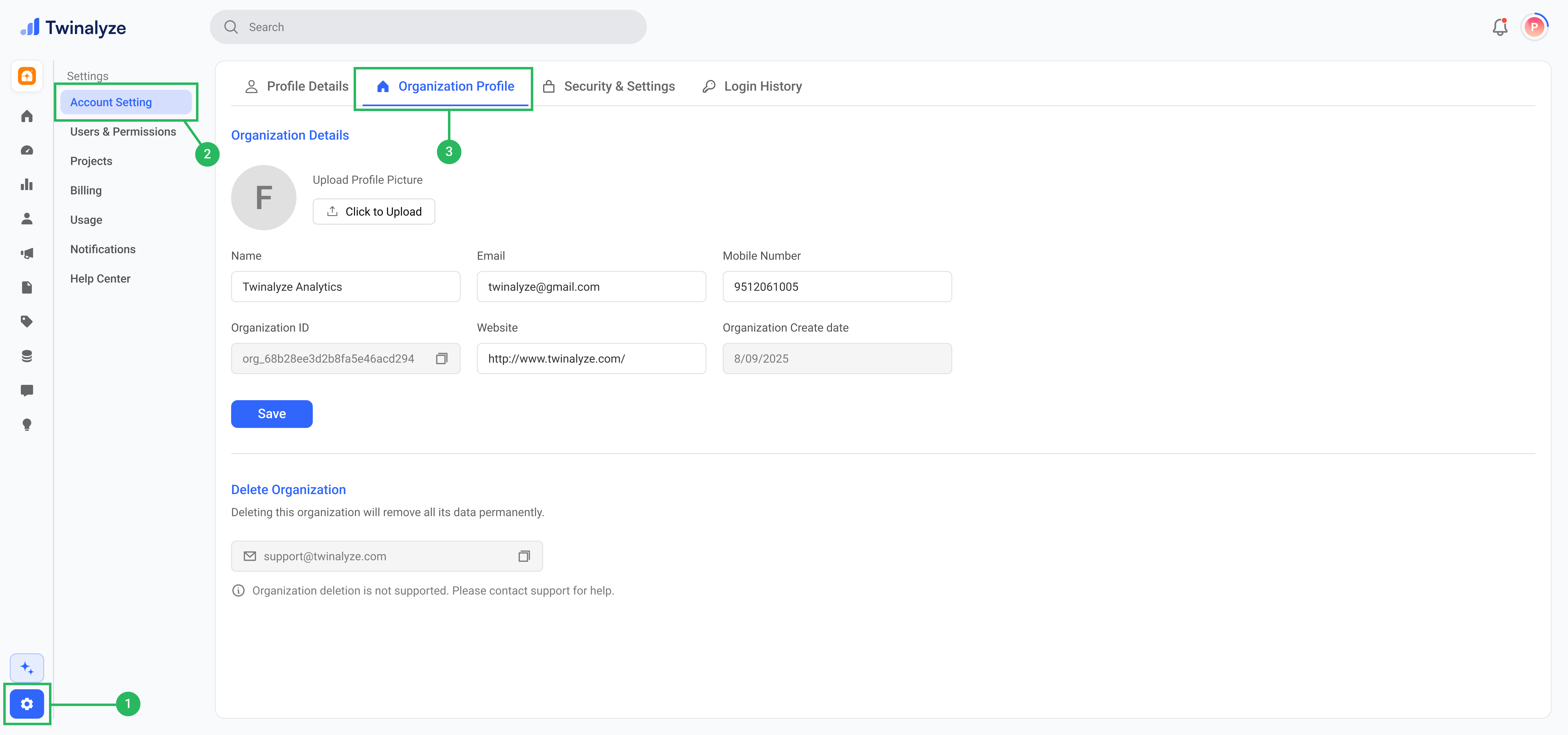
          Manage organization logo, name, email, mobile number, website, organization ID, and created date.
          <Frame>
            <img src="https://mintcdn.com/chartbazaar/2wSN9uurJBRb4A_3/images/Organization-settings/OrganizationProfile.png?fit=max&auto=format&n=2wSN9uurJBRb4A_3&q=85&s=c7a71222e4752350e74d4af312c1604d" alt="Twinalyze Organization Profile settings page" width="7680" height="3600" data-path="images/Organization-settings/OrganizationProfile.png" />
          </Frame>
        </Step>

        <Step title="Security & Settings">
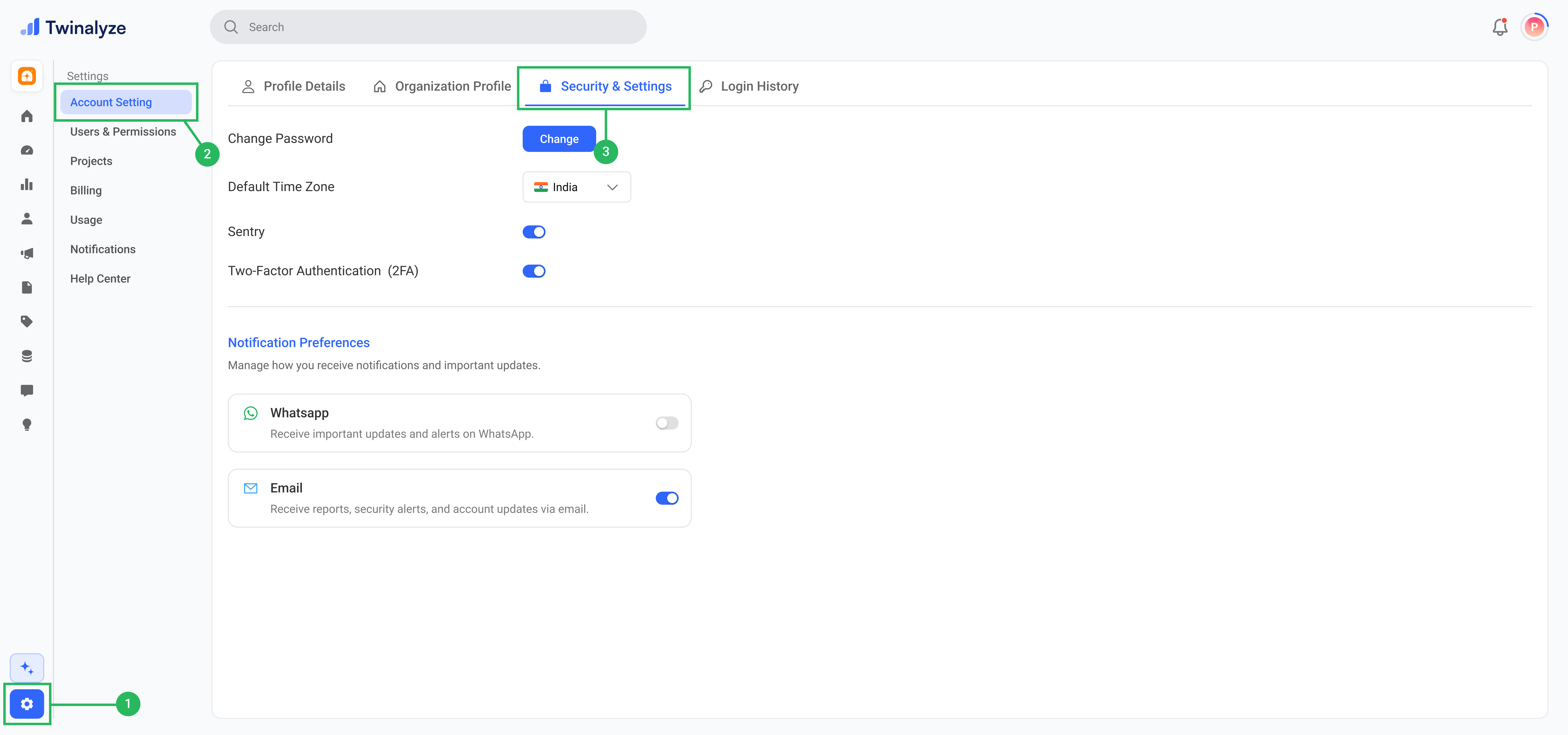
          Change password, select default timezone, and manage two-factor authentication.
          <Frame>
            <img src="https://mintcdn.com/chartbazaar/2wSN9uurJBRb4A_3/images/Organization-settings/Security-Settings.png?fit=max&auto=format&n=2wSN9uurJBRb4A_3&q=85&s=7b6eff6fc478259da9985770ba136efe" alt="Twinalyze Security and Settings page" width="7680" height="3600" data-path="images/Organization-settings/Security-Settings.png" />
          </Frame>
        </Step>

        <Step title="Login History">
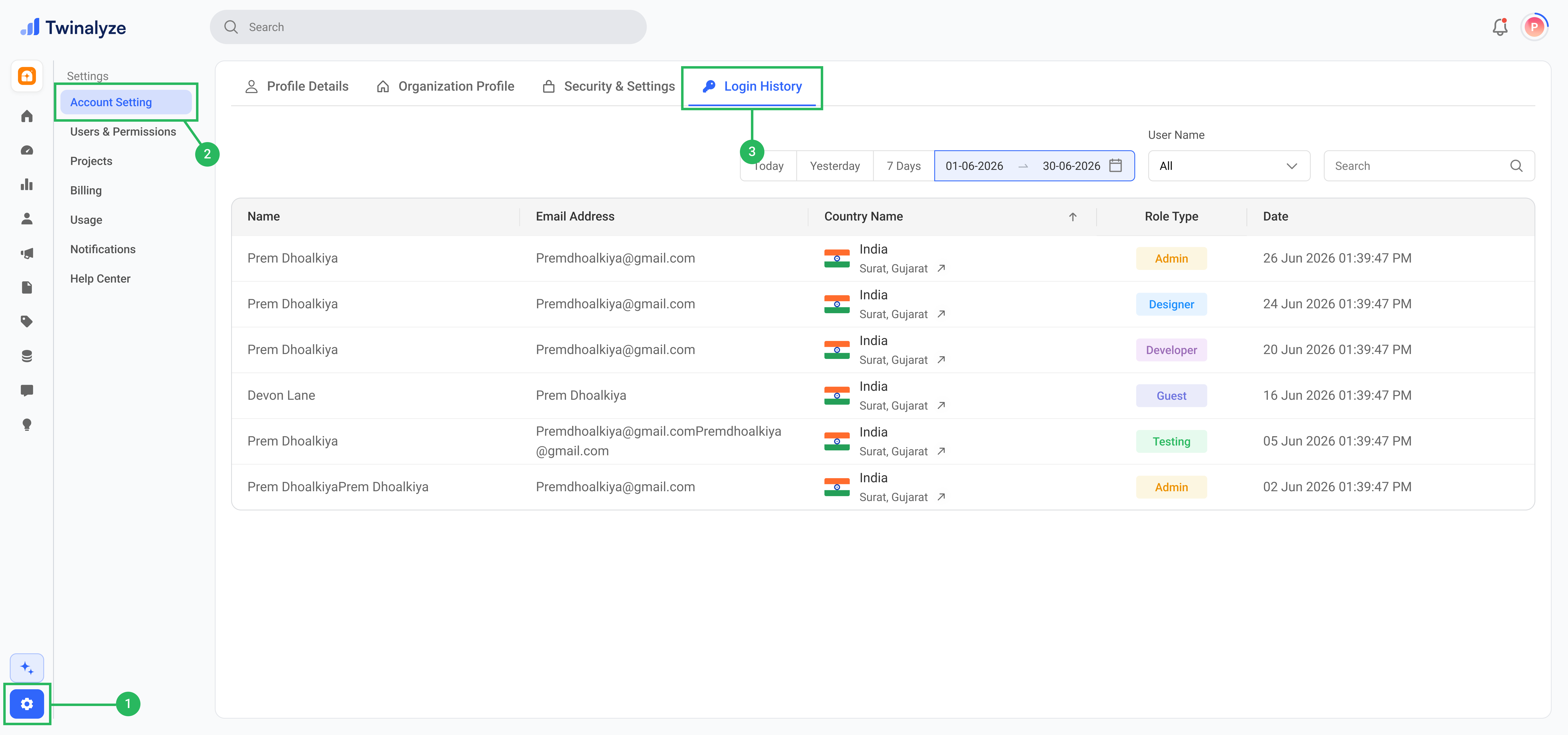
          Review login activity with user, email, country, location, role type, and login time.
          <Frame>
            <img src="https://mintcdn.com/chartbazaar/2wSN9uurJBRb4A_3/images/Organization-settings/Loginhistory.png?fit=max&auto=format&n=2wSN9uurJBRb4A_3&q=85&s=3eeb6536231d0026516288df8ba8fbe0" alt="Twinalyze Login History page" width="7680" height="3600" data-path="images/Organization-settings/Loginhistory.png" />
          </Frame>
        </Step>
      </Steps>
    </Tab>

    <Tab title="Users & Permissions">
      <Steps titleSize="h3">
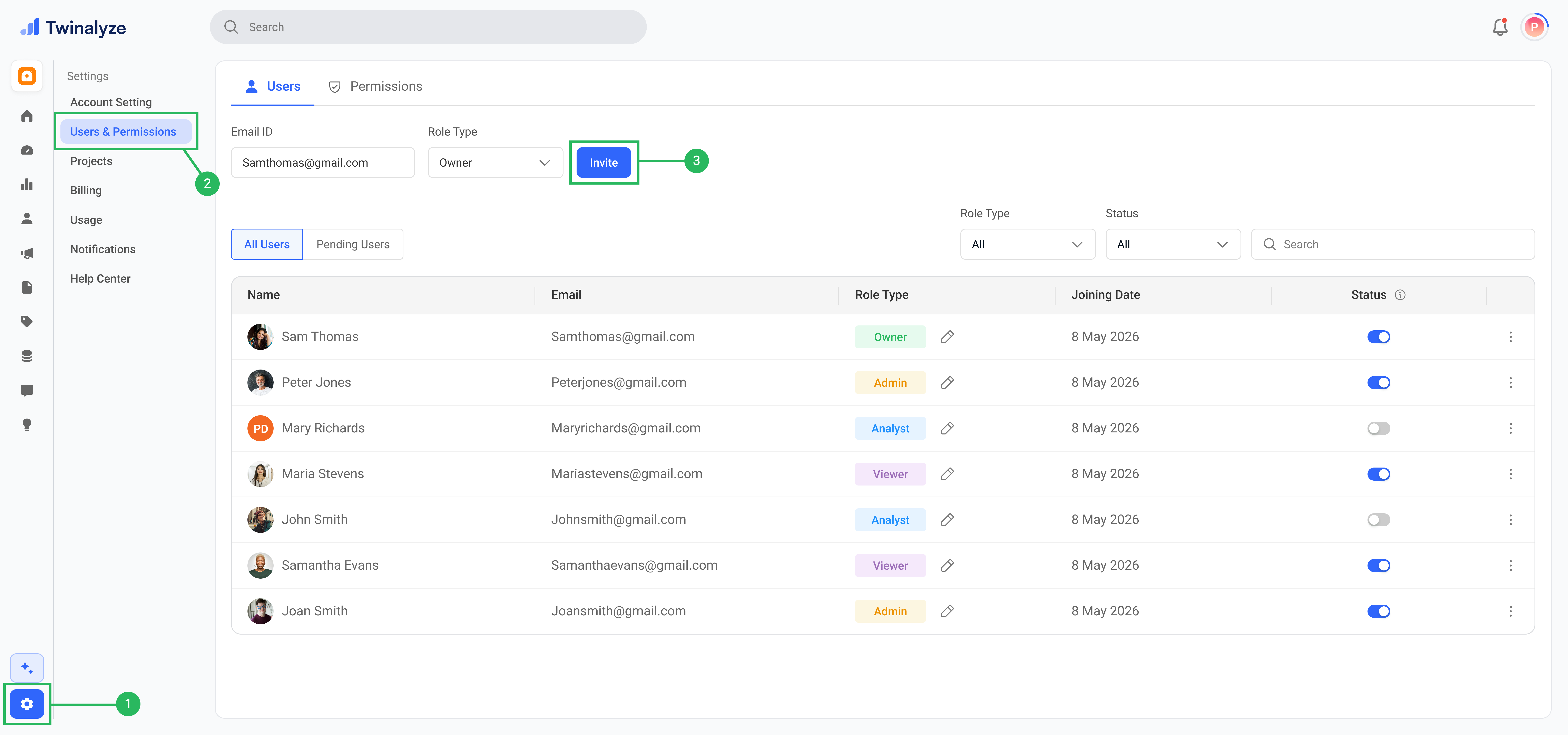
        <Step title="Send the invitation">
          Review the email address and selected role, then click **Invite**.

          Twinalyze sends an invitation email with instructions for joining the organization.
          <Frame>
            <img src="https://mintcdn.com/chartbazaar/wMGaVZiJmxc3S3os/images/role-and-permission/roleAllUuser.png?fit=max&auto=format&n=wMGaVZiJmxc3S3os&q=85&s=84ae4d89beaf0e5a184ad0460118c9de" alt="Send a Twinalyze organization invitation" width="7680" height="3600" data-path="images/role-and-permission/roleAllUuser.png" />
          </Frame>
        </Step>

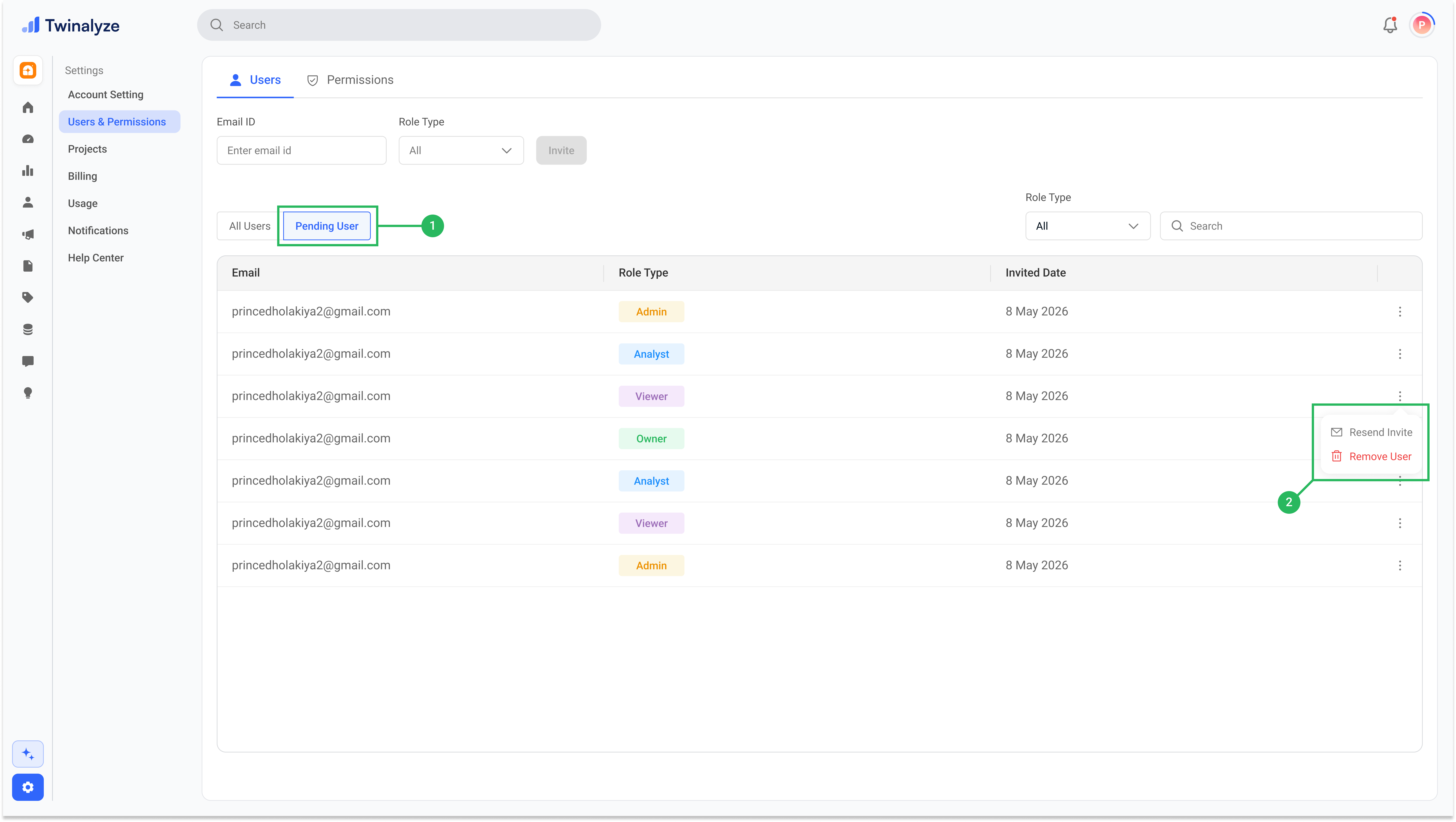
        <Step title="Review the pending invitation">
          Open the **Pending User** tab to confirm that the invitation was sent.

          The member remains in this section until they accept the invitation.
          <Frame>
            <img src="https://mintcdn.com/chartbazaar/wMGaVZiJmxc3S3os/images/role-and-permission/PendingUser.png?fit=max&auto=format&n=wMGaVZiJmxc3S3os&q=85&s=9e057aa1d194915747c15e6502c84d98" alt="Twinalyze pending user invitations" width="7712" height="4352" data-path="images/role-and-permission/PendingUser.png" />
          </Frame>
        </Step>
      </Steps>
    </Tab>
  </Tabs>
</div>

***

## Frequently asked questions

<AccordionGroup>
  <Accordion title="Who can update profile details?" icon="user">
    Each user can manage their own profile details such as profile picture, name, mobile number, date of birth, and address information.

    Some fields, such as email, may be disabled because they are used as the primary account identity.
  </Accordion>

  <Accordion title="Who can update organization details?" icon="building">
    Organization details should usually be managed by an admin or owner-level user.

    This includes organization logo, organization name, website, mobile number, and other workspace information.
  </Accordion>

  <Accordion title="Why is email or organization ID disabled?" icon="lock">
    Email and organization ID may be locked because they are used as important identifiers inside Twinalyze.

    This helps avoid account mismatch, workspace mismatch, or access issues.
  </Accordion>

  <Accordion title="When should I use two-factor authentication?" icon="shield">
    Two-factor authentication should be enabled when you want stronger account protection.

    It adds an extra security step during login and helps protect the workspace from unauthorized access.
  </Accordion>

  <Accordion title="How do I invite a team member?" icon="user-plus">
    Go to **Users and Permissions → Users**, enter the user email, select a role type, and click **Invite**.

    The invited user can access the workspace based on the assigned role.
  </Accordion>

  <Accordion title="How should I choose a role type?" icon="users">
    Choose the role based on the user’s responsibility.

    For example, give admin access only to users who need full control. Developers, designers, guests, or testing users should receive only the access they need.
  </Accordion>
</AccordionGroup>

<div className="twinalyze-bottom-nav">
  <a href="/overview/Adminstration/community" className="twinalyze-nav-side">
    <span className="twinalyze-nav-arrow">‹</span>
    <span>Previous</span>
  </a>

  <a href="/analytics/realtime-users" className="twinalyze-nav-center">
    <strong>Realtime users</strong>
    <span>Start by seeing realtime users.</span>
  </a>

  <a href="/analytics/realtime-users" className="twinalyze-nav-side">
    <span>Next</span>
    <span className="twinalyze-nav-arrow">›</span>
  </a>
</div>
