> ## Documentation Index
> Fetch the complete documentation index at: https://docs.paraminternationalltd.com/llms.txt
> Use this file to discover all available pages before exploring further.
# Google-Ads
> Connect your Google Ads account with Twinalyze to import campaign performance and conversion data.
Twinalyze reads reporting metrics such as impressions, clicks, cost, and conversions from the Google Ads account you select.
## Connect Google Ads
In Twinalyze, open your project and go to **Project Setting → Integrations**.
Find **Google Ads** under the **Marketing** section.
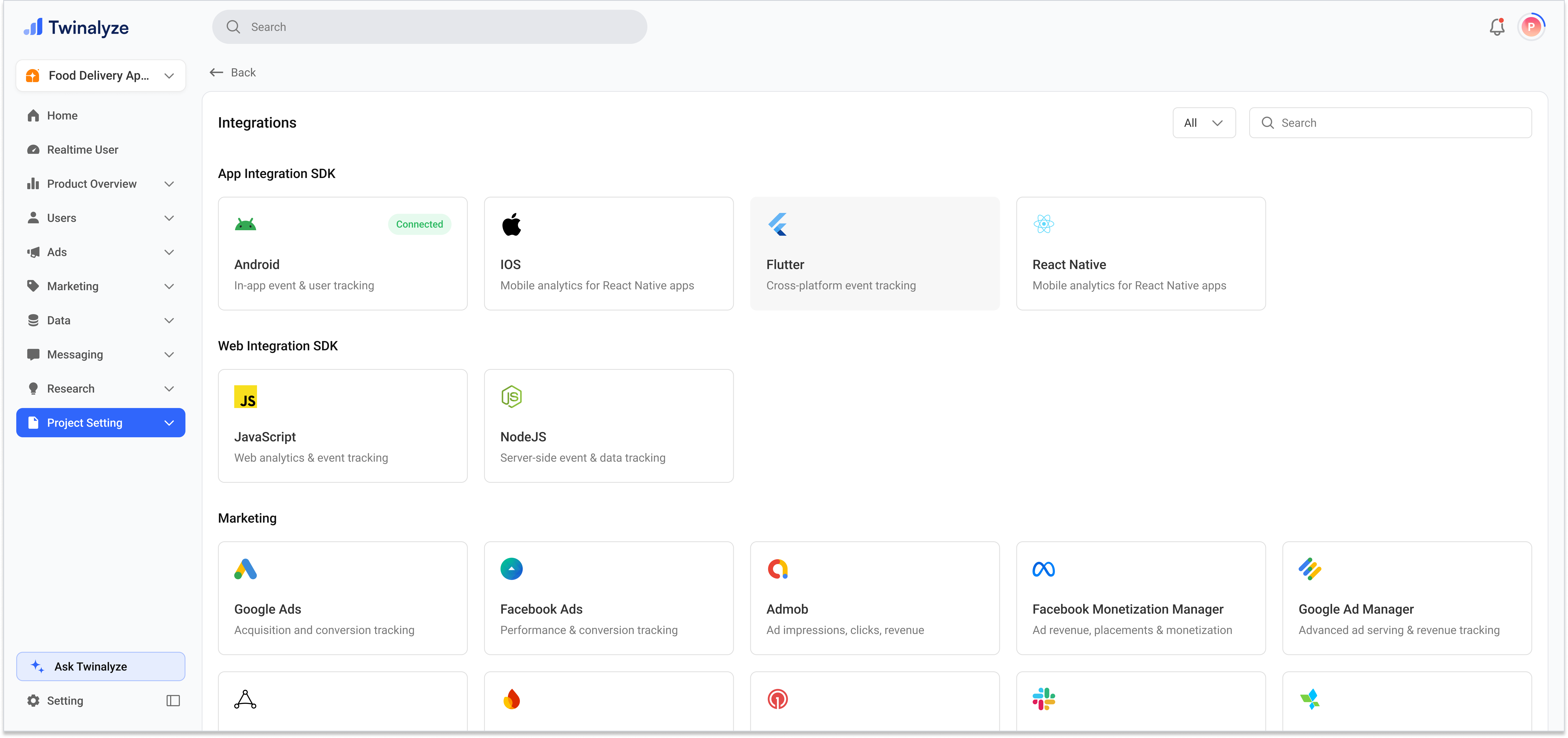 Select **Google Ads** from the integrations page.
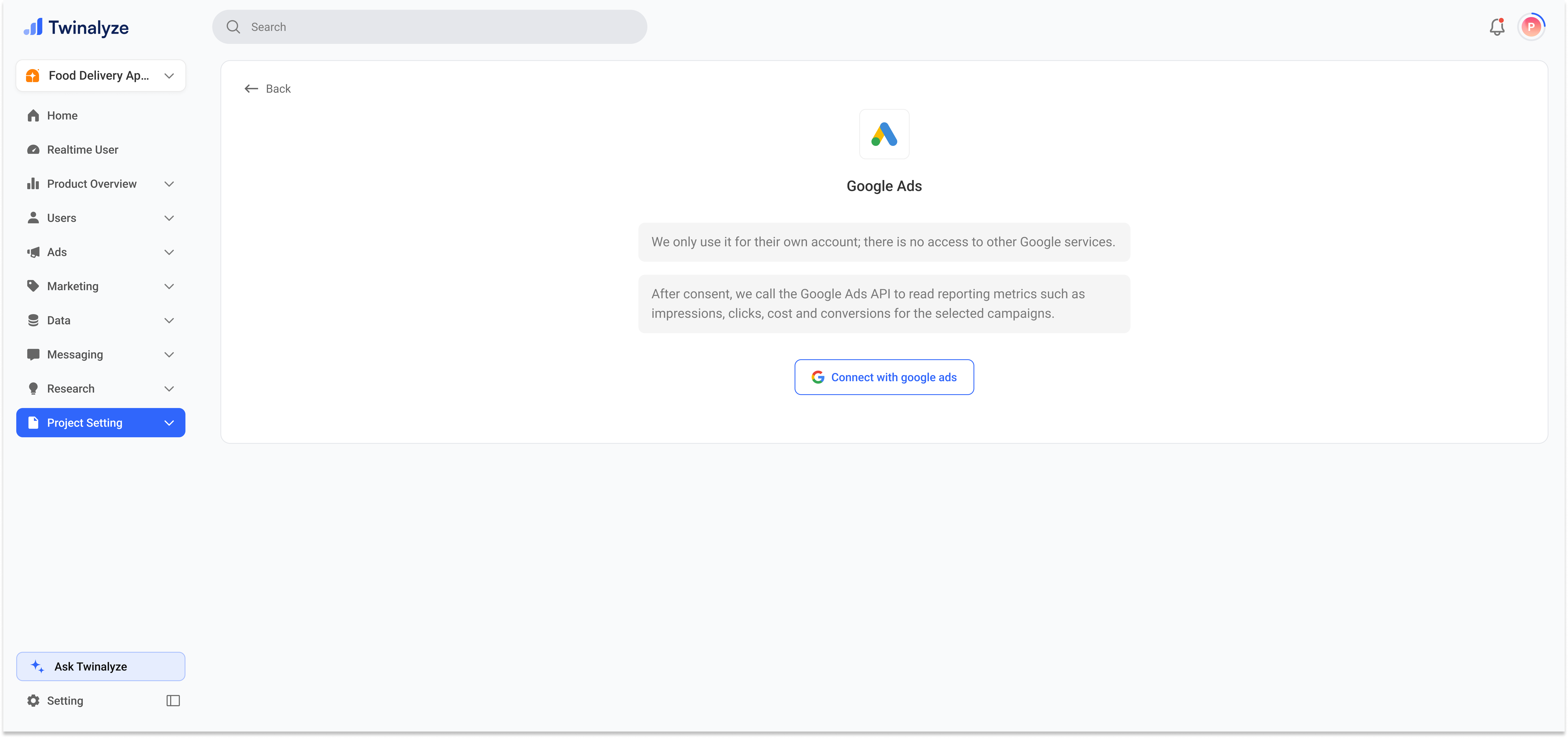
Review the information about how Twinalyze uses your Google Ads data, then click **Connect with Google Ads**.
Select **Google Ads** from the integrations page.
Review the information about how Twinalyze uses your Google Ads data, then click **Connect with Google Ads**.
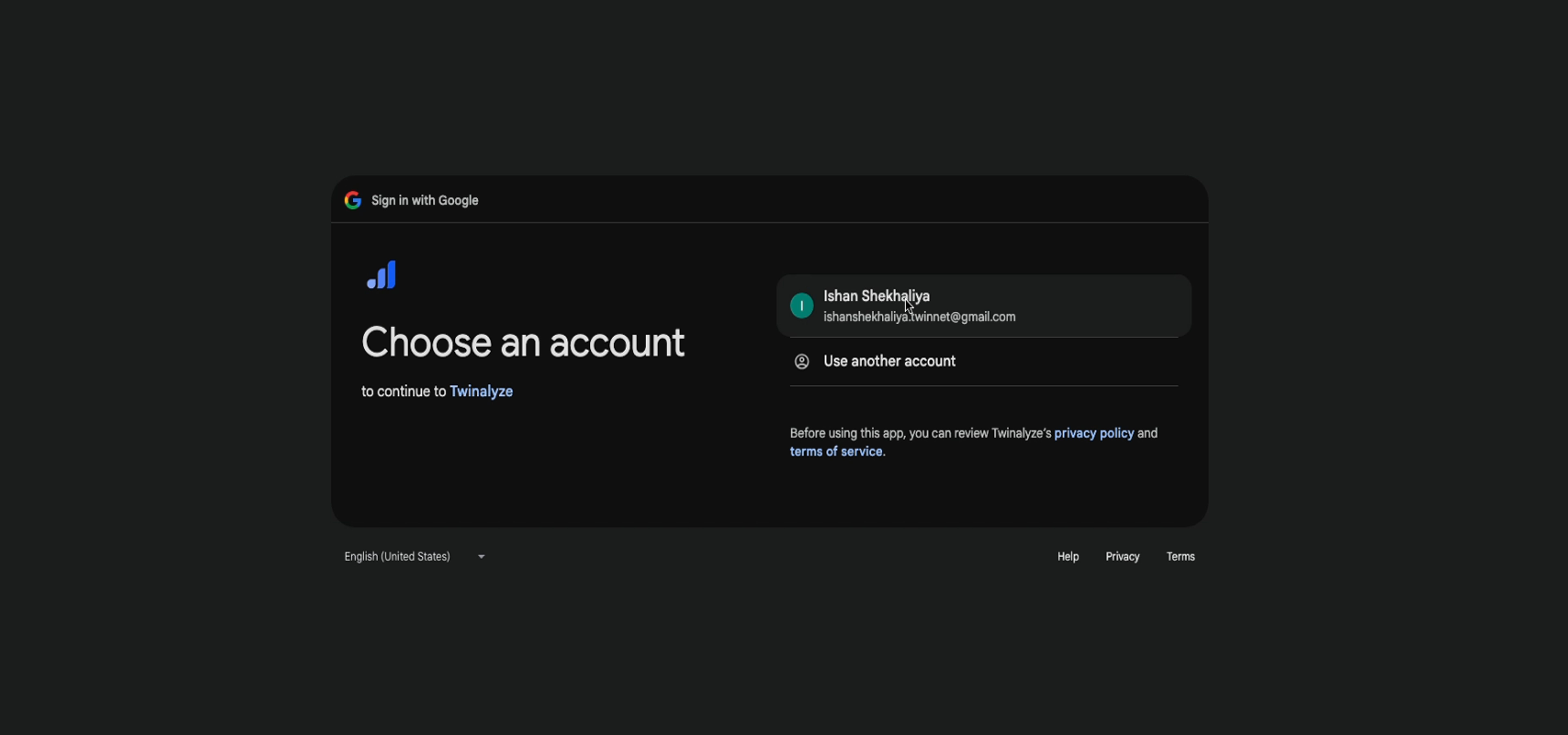
 Select the Google account that has access to the Google Ads account you want to connect.
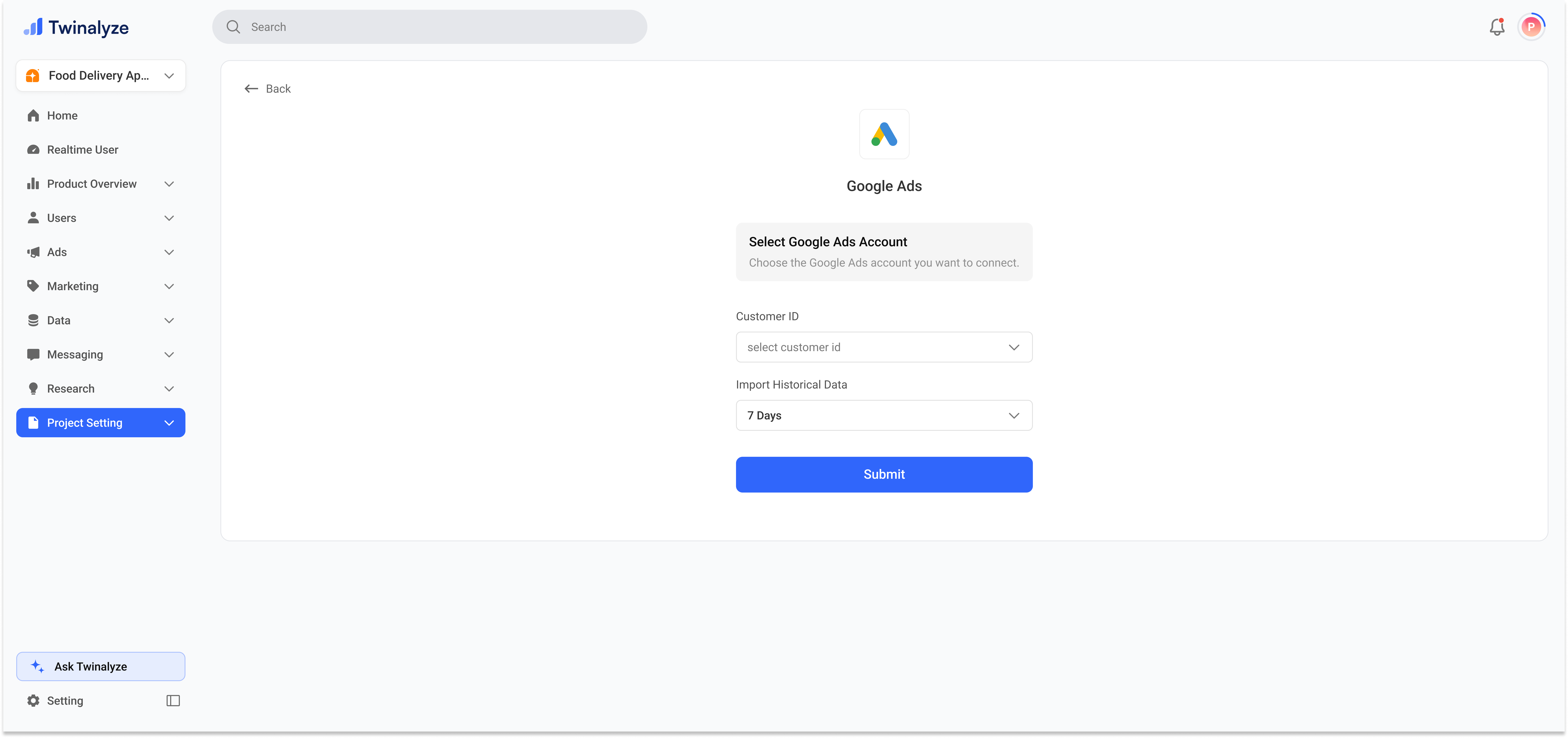
 After authorization, return to Twinalyze and select the required **Customer ID**.Choose the historical data period you want to import.
Click **Submit** to complete the integration.
After authorization, return to Twinalyze and select the required **Customer ID**.Choose the historical data period you want to import.
Click **Submit** to complete the integration.
 ## Data imported from Google Ads
Twinalyze can read reporting data for the selected Google Ads account, including:
* Impressions
* Clicks
* Advertising cost
* Conversions
* Campaign performance
* Historical reporting data for the selected period
## Data imported from Google Ads
Twinalyze can read reporting data for the selected Google Ads account, including:
* Impressions
* Clicks
* Advertising cost
* Conversions
* Campaign performance
* Historical reporting data for the selected period